 serin labs
A network change keeps app pairing; a factory reset is not needed.
On this page
Before changing networks
- Use a 2.4 GHz network. Have its name and password ready.
- If the controller is still connected, change the network before turning off the old router.
- If only its browser address stopped working, try the IP address from the router first. See opening the web interface.
Change or recover Wi-Fi
HomeKit-compatible and Matter-compatible firmware
While the controller is still connected:
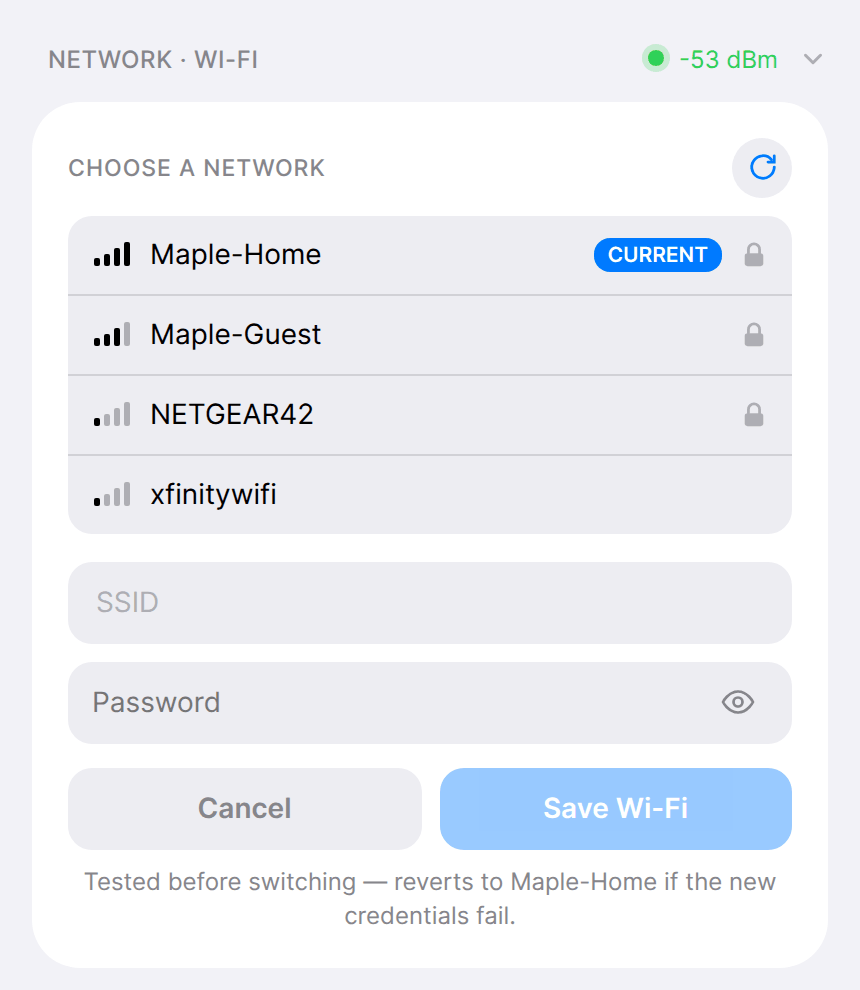
- Open the web interface, expand Network · Wi-Fi, and select Change Network….
- Choose the new network, enter its password, and select Save Wi-Fi.
- The controller tries the new network for up to 30 seconds. If it joins, it switches over without restarting. If it cannot join, it stays on the current network.
- Put your phone on the new network and open the controller again. Its IP address may change; find it in the router's connected-device list.
Recover a controller that lost its network.
- After five minutes without its saved network, the controller opens a backup setup network named
Serin-XXXX. - Join that network with password
serinlabs, then openhttp://192.168.4.1. - Enter the new network name and password.
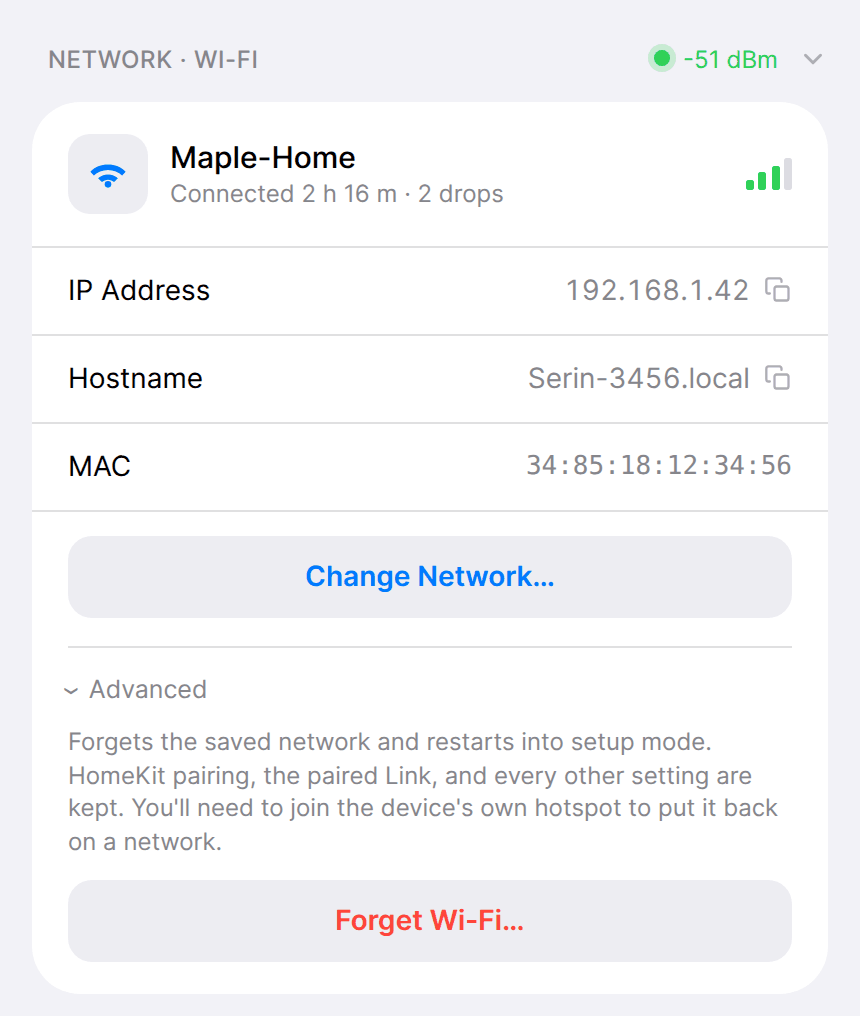
Erase the saved network and start again. In Network · Wi-Fi, open Advanced and select Forget Wi-Fi…. The controller erases the saved network and restarts into its backup setup network; follow steps 2 and 3 above. App pairing and settings are kept.
Without the web interface, hold the board button for 10 seconds instead. The controller erases the saved network and restarts as soon as the hold reaches 10 seconds, while the button is still pressed. Release during the red warning from 7 to 10 seconds to cancel. A shorter hold has a different action; see the button reference.
A Matter-compatible controller that has never joined a network gets its Wi-Fi details from your app during pairing. Use the Matter setup guide for it instead.
ESPHome
The standard configuration provides a fallback network named serin-XXXXXX, password serinlabs, when it cannot connect. Join it and open http://192.168.4.1 to enter credentials. If you customized the configuration, use the fallback network settings in your YAML. Keep the Wi-Fi settings or secrets in your ESPHome configuration current before your next installation.
The browser installer can also send Wi-Fi credentials over USB. Disconnect CN105 before connecting USB, following the USB recovery procedure. ESPHome does not use the button actions above.
Check the connection
Reconnect your phone to the home network. Find the controller's IP address in the router, open its web interface, and test a command there and in your app.
If the controller appears on the network but your app is unavailable, follow connectivity troubleshooting before removing its pairing. If you cannot restore network access, use USB recovery.