 serin labs
Firmware updates are free. HomeKit-compatible and Matter-compatible firmware update from the controller's web interface, and ESPHome updates from the ESPHome dashboard. The flash tool can update any of them over USB. An update over Wi-Fi keeps the controller's Wi-Fi network, pairing, and settings.
On this page
Check the installed version
For any firmware, the flash tool also reports the installed firmware and version when the controller is connected over USB. It reads the board before it writes anything.
HomeKit-compatible and Matter-compatible firmware
- Open the web interface and select the Firmware heading to expand that section.
- Read the version under Installed, for example
v0.2.5. About > Firmware shows the same number.
After an update, reload the page before you read the version. Installed keeps showing the old number until the page reloads.
ESPHome
ESPHome firmware reports the ESPHome release it was built with; the Serin configuration has no version number of its own. Home Assistant shows it as the controller's ESPHome Version sensor.
Update over Wi-Fi
These steps apply to HomeKit-compatible and Matter-compatible firmware. The controller stays in the indoor unit.
- Open the web interface and expand Firmware.
- Select Check for Updates. If a newer release exists, an install button appears with its version number, for example Install v0.2.5.
- Select the install button and confirm. Your phone or computer downloads the update and sends it to the controller, which checks it and restarts. Keep this page open, and the phone awake, until it shows "Update complete! Restarting...". The controller's light pulses white while the update installs. Do not switch off the power.
- After the controller restarts, reload the page and check the version under Installed. Then change the mode or target temperature and confirm that the indoor unit responds.
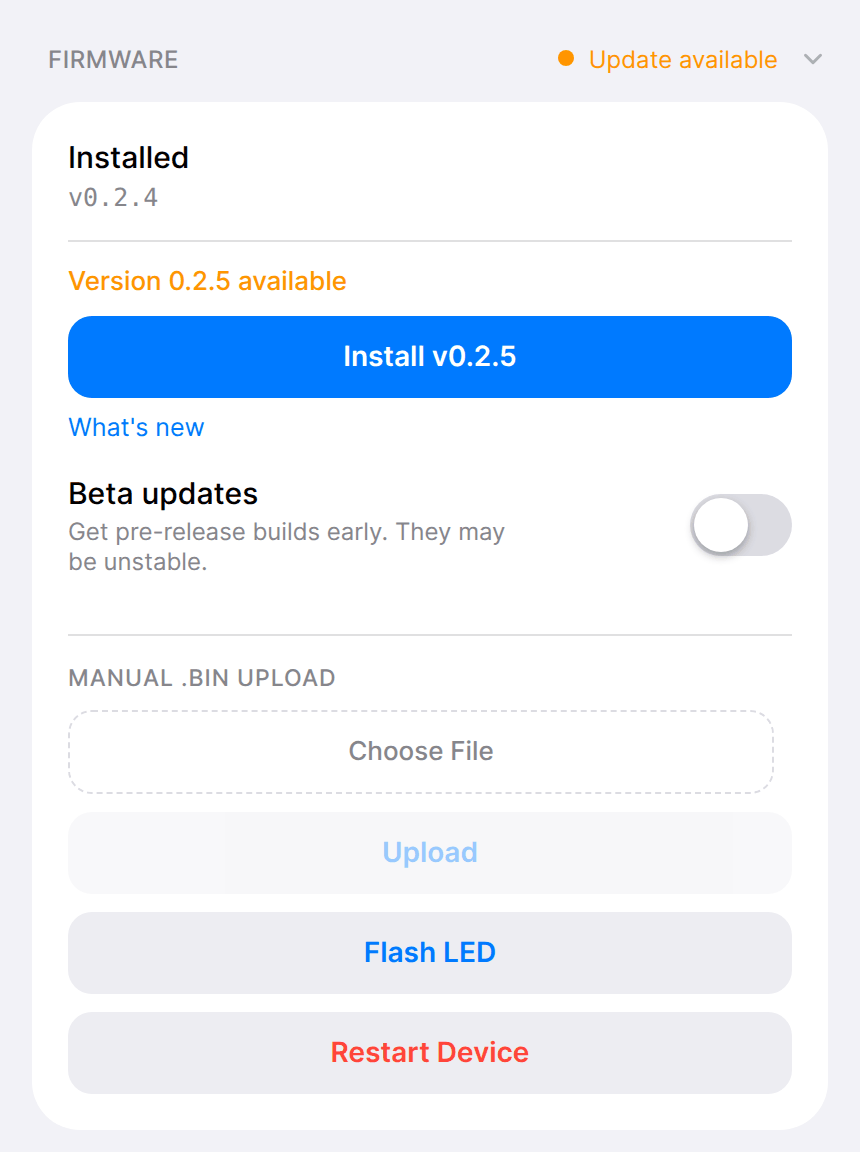
Check: The version under Installed is the new one, and the indoor unit responds to a command.
Your phone or computer checks for the update and downloads it, so it needs internet access. The controller does not. When you open the web interface, the page also checks by itself if this browser has not checked in the past day, and marks the section Update available when it finds one. The controller never installs an update by itself.
If the new version does not start correctly, the controller returns to the previous version by itself; see the version did not change. The result line under Installed explains what the check found:
Scroll sideways to read all columns.
| Message | What it means |
|---|---|
| Up to date | The controller runs the newest stable release. Pre-release builds are offered only when Beta updates is on. |
| Version … available | A newer release is ready to install. |
| … manifest missing install data, install manually below. | No release is published for this board, which is usual for a DIY build. Use the flash tool, or install your own build as a firmware file. |
| Any other Check failed message | Your phone or computer could not get the release information. Check its internet connection and try again, or install a firmware file. |
| Install failed, or Upload failed | The update did not finish, and the controller still runs its previous version. Select the install button again, or reload the page. The reason after "Upload failed:" is explained under Install a firmware file. |
A custom build shows no Check for Updates button. Update it with the flash tool or a firmware file.
Try a pre-release build
Pre-release builds get new fixes and features before a stable release. They are newer and less tested. HomeKit-compatible and Matter-compatible firmware can install them from the web interface. ESPHome has no pre-release builds.
- Open Firmware and turn on Beta updates. The page checks for updates straight away.
- Select the install button, for example Install v0.2.6-beta.3 · beta, and confirm.
- After the restart, reload the page and check Installed.
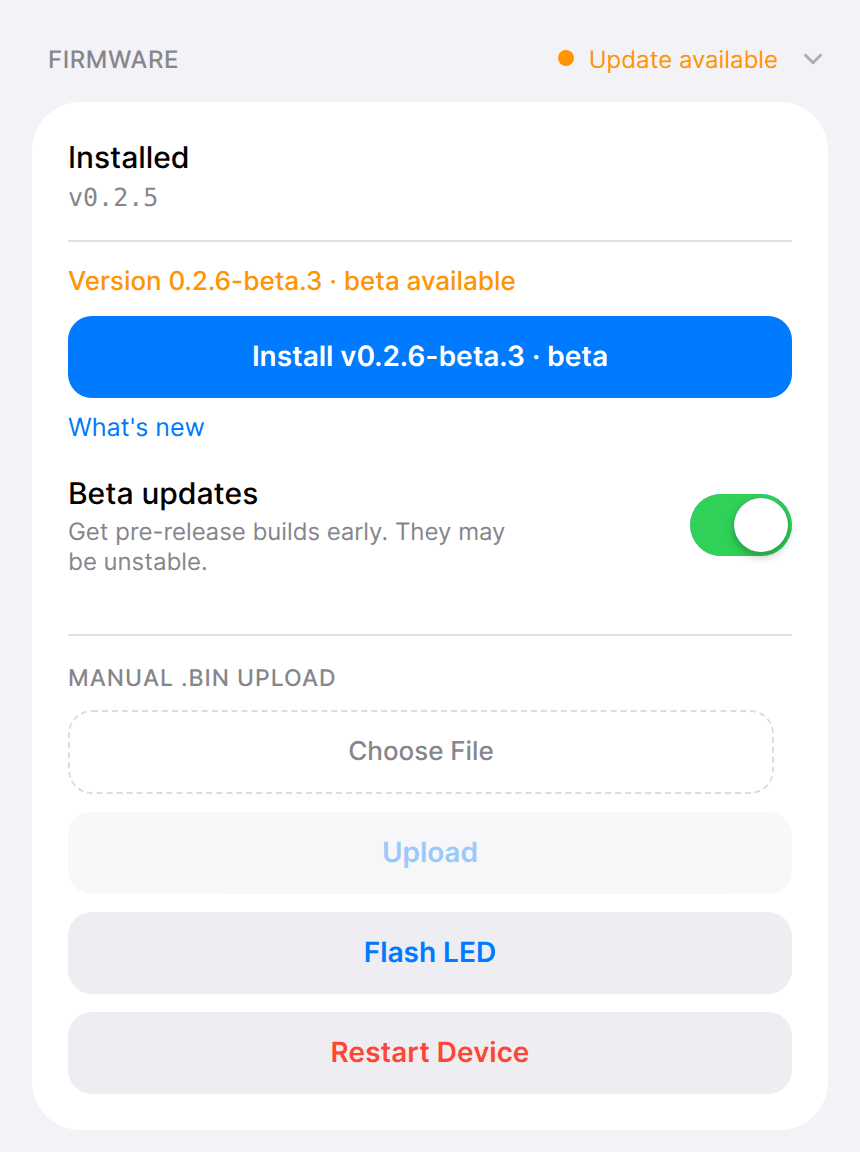
The Beta updates setting is saved on the controller, so it stays on whichever phone or computer you use next. When a stable release is newer than your pre-release, the stable release is offered instead.
Return to the stable release
These steps apply to HomeKit-compatible and Matter-compatible firmware.
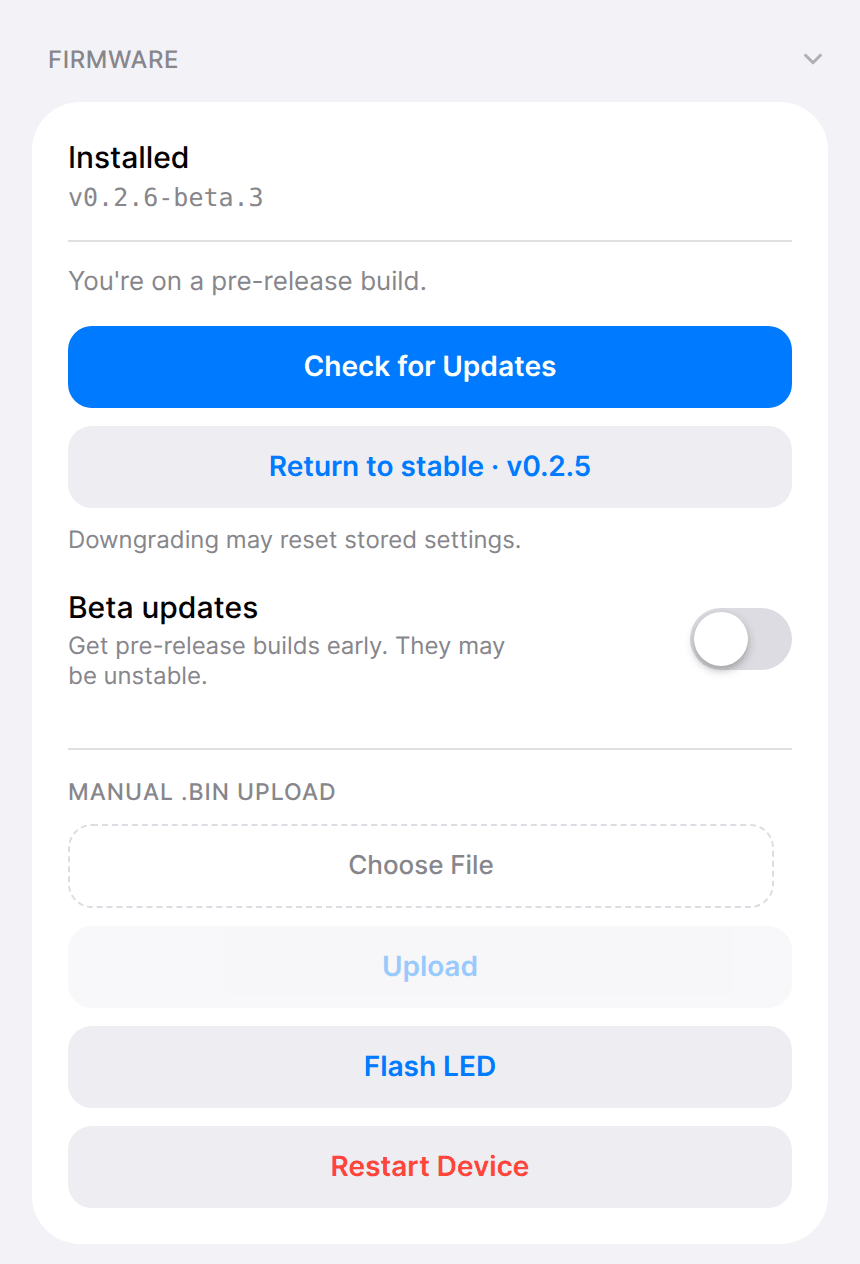
- Open Firmware and turn off Beta updates. The section shows "You're on a pre-release build."
- Select Return to stable (the button shows the stable version) and confirm.
- After the restart, reload the page, check Installed, and check your settings.
Update over USB
Use the flash tool when the controller is not on your network, when ESPHome firmware has not been adopted, or to install a pre-release of the HomeKit-compatible firmware from a computer. The controller must be out of the indoor unit and powered only by USB; follow the USB installation steps for disconnecting and reconnecting it.
- Connect the controller to a computer with a USB-C data cable. Open the flash tool in Chrome, Edge, or Brave and select Connect a device.
- Select the firmware already installed. For HomeKit-compatible and Matter-compatible firmware, the tool marks it ON THE BOARD and shows the newer version if one is available.
- To install a pre-release of the HomeKit-compatible firmware, select Apple Home and tick Install the pre-release build. The box appears only when a pre-release exists for your board.
- Leave Erase everything first unticked to keep Wi-Fi, pairing, and settings. Select the button, for example Update to 0.2.6-beta.3, and keep the cable connected until the tool finishes.
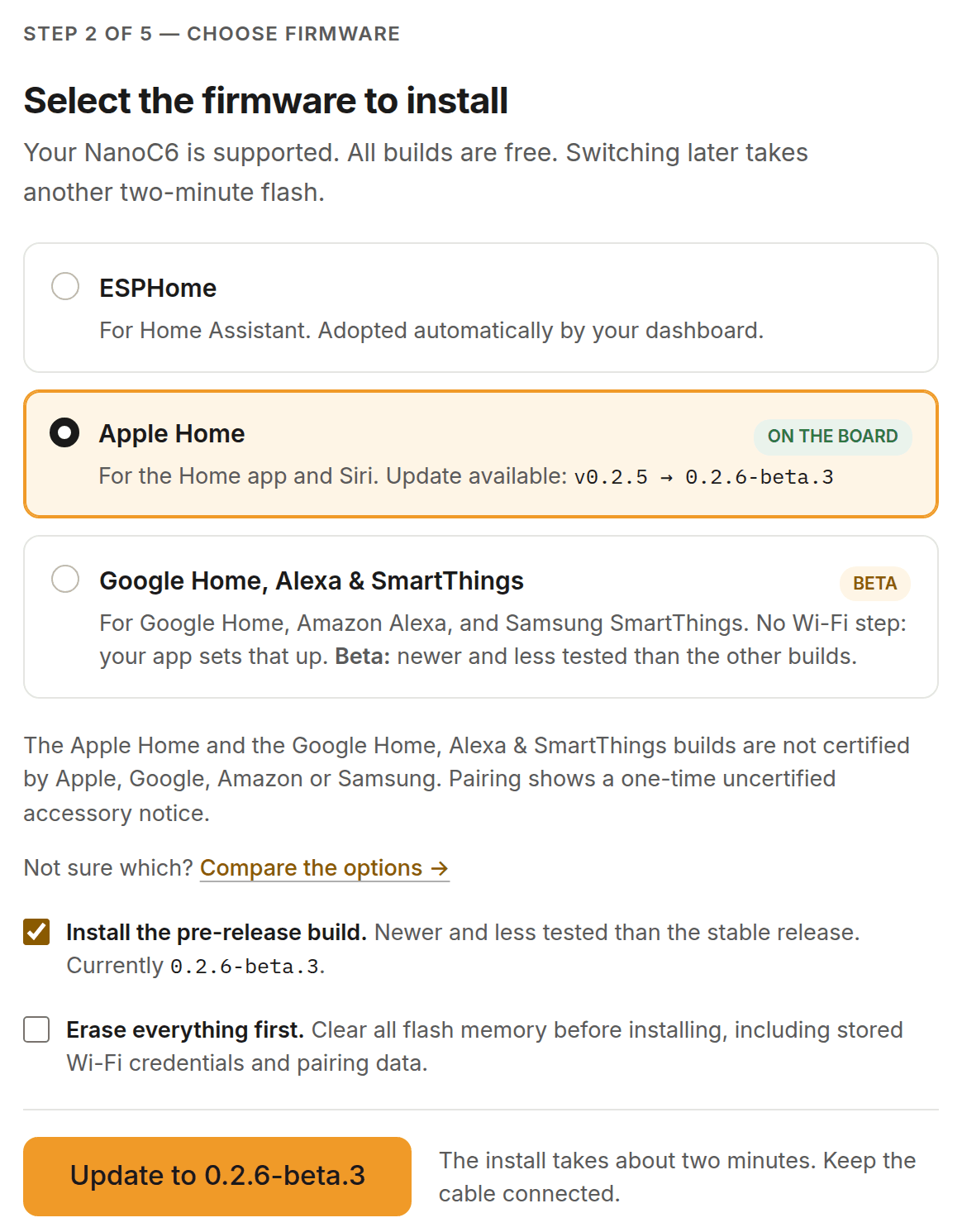
To go back to the stable release over USB, leave Install the pre-release build unticked. The tool warns that the build is older than the one installed. Tick Install the older version anyway, then install.
Install a firmware file
HomeKit-compatible and Matter-compatible firmware can install a firmware file from your phone or computer. Use this when support sends you a file, or when your phone or computer cannot reach the release server.
- Get the file for your board. For HomeKit-compatible firmware, open What's new or the release page and download
firmware-nanoc6.bin, orfirmware-m5atoms3-lite.binfor the Atom S3 Lite. - In Firmware, under Manual .bin Upload, select Choose File and pick the file. Select Upload and confirm.
- Wait for "Update complete! Restarting...", then reload the page and check Installed.
If the controller refuses the file, the message after "Upload failed:" gives the reason:
Scroll sideways to read all columns.
| Message | What to do |
|---|---|
| Not an app image | The file is a complete flash image, such as the one the flash tool writes. Download the file named above. |
| Firmware is for a different chip | The file is for another board. Download the file for your board. |
| Firmware is a different application | HomeKit-compatible and Matter-compatible firmware cannot replace each other over Wi-Fi. Use the flash tool to switch firmware. |
| Upload stalled | The Wi-Fi connection dropped during the upload. Try again. |
HomeKit-compatible firmware also accepts a command-line upload with curl; see its source documentation.
ESPHome updates
How you update ESPHome firmware depends on how the controller was set up.
- Adopted in the ESPHome dashboard. Select Install on the controller's card to build the current configuration and send it over Wi-Fi. This picks up changes to the Serin configuration. The dashboard marks a controller for update only when a new ESPHome release comes out; Serin changes do not trigger that notice.
- Customized with the YAML generator. The generated configuration is a copy made when you generated it. To pick up later changes, generate it again and install it.
- Not adopted yet. The firmware from the browser installer does not update itself. Adopt it and install from the dashboard, or reinstall it with the flash tool. Reinstalling ESPHome with the flash tool resets its stored settings; the button reads Reset and install.
If an update fails or the controller stops responding, use update recovery.