 serin labs
App pairing is separate from Wi-Fi and Serin Link pairing.
On this page
Choose the action
For a first installation, use the setup guide; for a new router, use Change Wi-Fi.
A HomeKit or Matter pairing reset keeps Wi-Fi, settings and a paired Serin Link. A factory reset clears them.
Reset or add pairings
Apple Home (HomeKit-compatible firmware)
- In the Home app, open the thermostat's settings and select Remove Accessory.
- In the controller's web interface, expand HomeKit and select Reset HomeKit Pairing. The button appears only while the controller is paired. Confirm, and the controller restarts.
- Follow Apple Home setup to add it again with the same setup code.
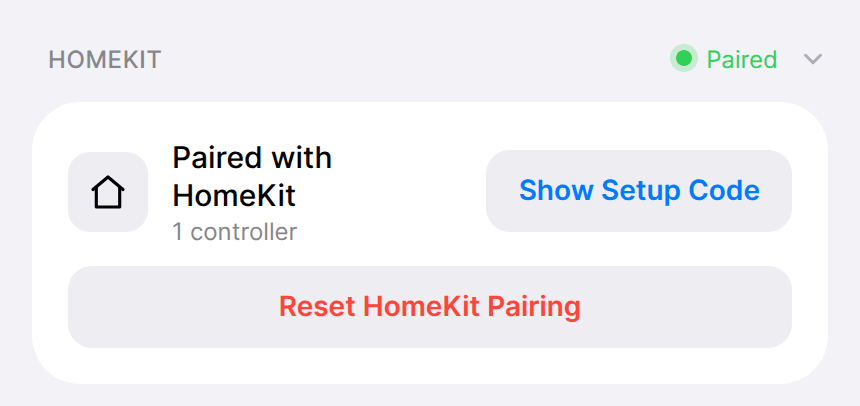
If you reset pairing without removing the thermostat first, the old one stays in the Home app as not responding. Remove it there, then add the controller again.
Google Home, Alexa and SmartThings (Matter-compatible firmware)
A Matter-compatible controller can be added to more than one app at a time. Expand Matter in the web interface to manage them.
- Add it to another app. Select Open Pairing Window. Within 15 minutes, add a Matter device in the second app and scan the code shown by Show Setup Code.
- Remove one app. Remove the thermostat in that app first. If it still appears under Paired Controllers, select Remove beside it. The other apps keep working.
- Remove every app. Select Reset Matter Pairing. The controller restarts, keeps its Wi-Fi network, and must be added again in each app.
Apple Home appears twice under Paired Controllers, as Apple and Apple Keychain. Both belong to the same home.
Find the setup code again
In the web interface's pairing section, select Show Setup Code if already paired. Resetting pairing does not change the code.
For a Matter-compatible controller that has never joined a network, see Matter setup.
Home Assistant integration
ESPHome uses its Home Assistant integration and API credentials rather than a HomeKit or Matter setup code. Use the Home Assistant setup instructions to add it. If you replace its YAML, preserve the device name and credentials.
Verify control after pairing
Check the app's temperature reading and send a command to the indoor unit. For discovery or timeout problems, use troubleshooting.