A wall-mounted indoor unit measures return air near the ceiling. A sensor near the occupied part of the room can give the heat pump a more representative temperature. Set up the controller and confirm normal heat-pump control before changing its temperature source.
Choose and place a sensor
All three firmware options can read compatible Bluetooth thermometers directly. The setup method and supported sensors depend on your firmware. ESPHome can also receive a temperature entity from Home Assistant, which lets you use sensors on other networks such as Zigbee or Z-Wave.
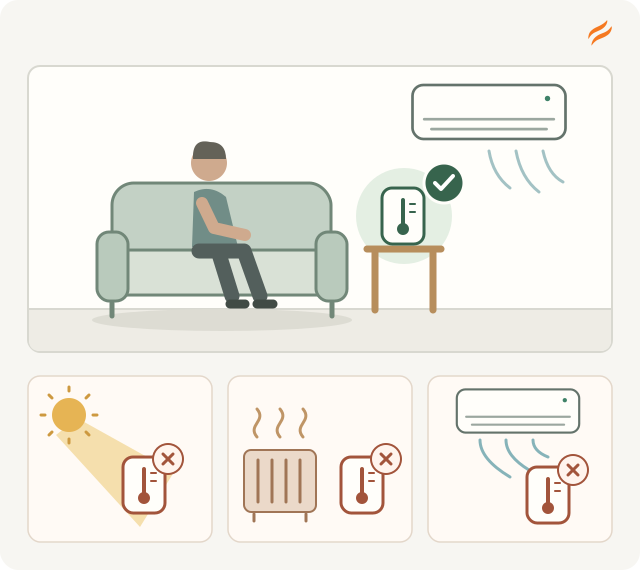
Place the thermometer near seating height, away from direct sunlight, heat sources, and the indoor unit's airstream. Choose a location that represents the area you want comfortable. The room sensor article explains why placement matters.
Configure sensors in the web interface
HomeKit-compatible and Matter firmware share the same room-sensor controls. The steps below apply to both.
You need a compatible Bluetooth thermometer within range of the controller. The controller can read up to four Bluetooth thermometers; no Home Assistant or manual Bluetooth pairing is required.
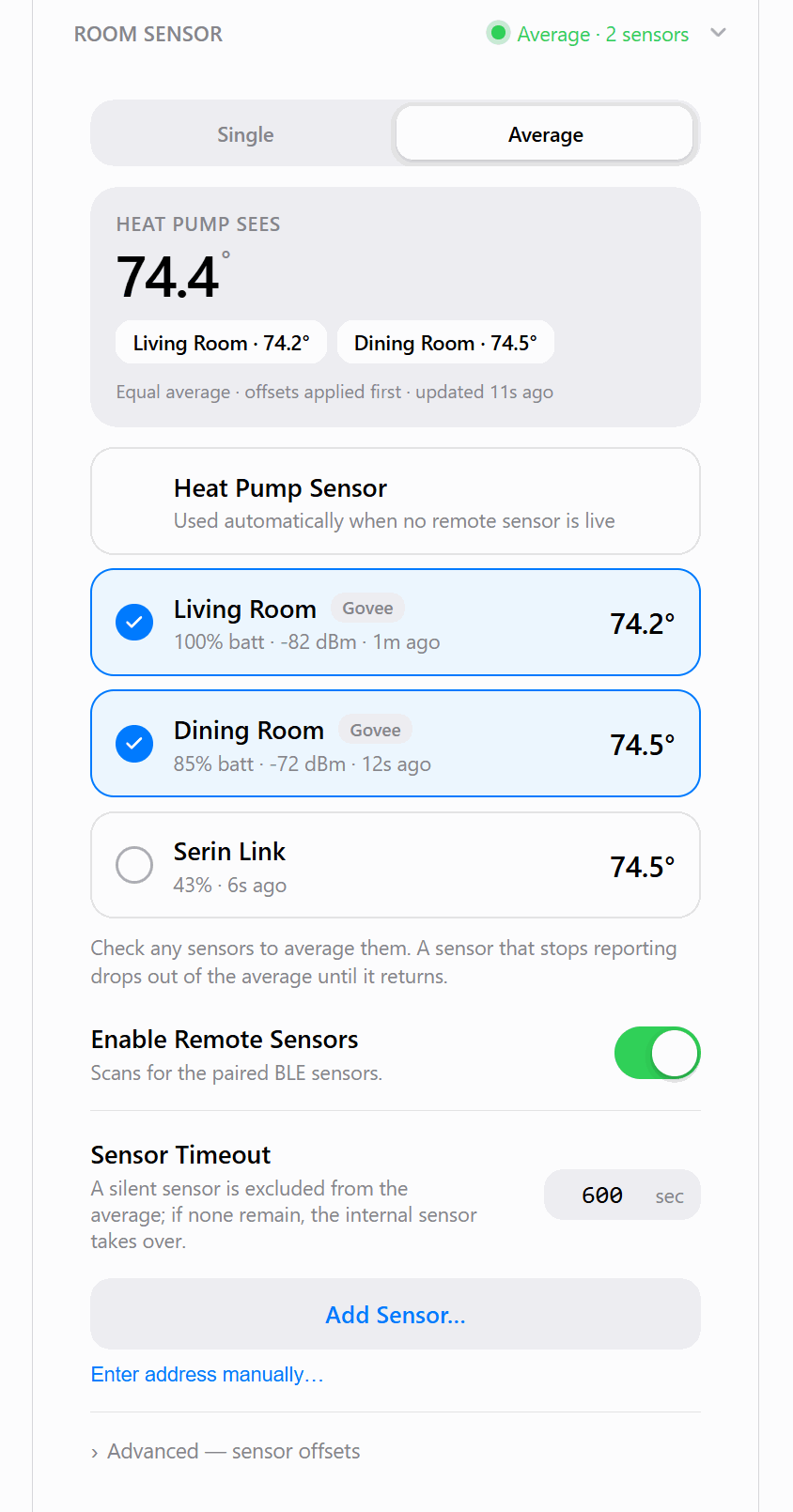
- Open the controller's web interface and find the Room Sensor card.
- Turn on Enable Remote Sensors, then select Add Sensor…. Choose your thermometer from the scan results to add it as a source. The card also lists the indoor unit's own sensor and a paired Serin Link.
- Choose Single to use one source, or Average and select several sources to feed their average to the heat pump.
- Use a per-sensor calibration offset if a reading needs correction against a known reference. Check the resulting room reading before relying on it.
The controller's sensor card shows readings and connection information. If the remote source becomes unavailable, the heat pump falls back to its own sensor until the remote source returns.
On HomeKit-compatible firmware, the first Bluetooth sensor also appears as its own Apple Home accessory with temperature, humidity, and a low-battery warning.
Configure sensors in ESPHome
ESPHome supports two routes: read a Bluetooth thermometer on the controller itself, or receive a temperature entity from Home Assistant. Choose one route to supply the heat pump's remote reading.
Read a Bluetooth thermometer directly
This route runs locally on the controller; Home Assistant does not forward the readings. Add the thermometer's sensor component and BLE tracker to your ESPHome YAML, using its Bluetooth MAC address and any required encryption key. Follow Customize ESPHome to edit and install your configuration.
Examples include Xiaomi thermometers with stock or PVVX firmware and RuuviTag. Match the component to the thermometer's model and advertisement format. Some Govee models, such as H5075, can also be read directly, using custom YAML to decode their Bluetooth broadcasts.
Connect the temperature sensor's on_value automation to id(hp).set_remote_temperature(x);, where hp is the CN105 climate ID in the generated configuration and x is the reading in Celsius. Filter invalid readings and send updates more often than the configured remote_temperature_timeout. If updates stop, that timeout controls when the heat pump returns to its built-in sensor.
Use a Home Assistant temperature entity
You need an adopted controller and a working temperature entity in Home Assistant. The sensor can use Zigbee, Z-Wave, Bluetooth, another ESPHome device, or any other integration that supplies a temperature entity. This route depends on Home Assistant forwarding the reading.
- Find the sensor's entity ID in Home Assistant, for example
sensor.living_room_temp, and confirm it has a current reading. - Follow Customize ESPHome to import your existing configuration into the YAML generator.
- Under Room temperature source, enable Home Assistant temperature sensor and enter the ID in Sensor entity ID in Home Assistant. The generator leaves the sensor out of the YAML until you enter an ID. Keep the device identity and existing credentials.
- Replace the device's configuration with the generated file and install it over Wi-Fi. Then check that the reported room temperature follows the remote sensor.
Fahrenheit sensors are supported. Invalid readings are ignored. If the remote source becomes unavailable, the indoor unit returns to its built-in sensor and resumes the remote reading when it reconnects. If Home Assistant is down, it cannot send new remote readings.
Under Advanced options, the generator's Home Assistant Bluetooth proxy lets Home Assistant reach nearby Bluetooth devices through the controller. A compatible thermometer connected that way can supply the same Home Assistant temperature entity; it is still the Home Assistant route described above. Reading a thermometer directly on the controller requires the custom YAML described above.
Check the reading and fallback
Compare the controller's room reading with the chosen thermometer and confirm that climate commands still work. For web-interface setup, check the sensor's reporting state, battery, and signal in the Room Sensor card. For direct Bluetooth in ESPHome, check the device logs for fresh readings. For the Home Assistant route, check that the source entity remains available and readings reach the controller. If a sensor drops out, restore its power or connection and check that remote readings resume.
If the indoor unit reports no temperature even with its own sensor, use CN105 troubleshooting before changing the sensor configuration.