 serin labs
For a new network or home, use Change Wi-Fi or Manage app pairings. Use USB recovery for an unreachable controller.
On this page
What each action erases
On HomeKit-compatible and Matter-compatible firmware, “other settings” includes the name, modes and temperature ranges, room sensors and paired Serin Link.
Scroll sideways to read all columns.
| Action | Wi-Fi network | App pairing | Other settings |
|---|---|---|---|
| Change Network… | Replaced | Kept | Kept |
| Forget Wi-Fi… or a 10-second button hold | Erased | Kept | Kept |
| Reset HomeKit Pairing | Kept | Erased | Kept |
| Reset Matter Pairing | Kept | Erased | Kept |
| Factory Reset… | Erased | Erased | Erased |
| USB update of HomeKit-compatible or Matter-compatible firmware | Kept | Kept | Kept |
| USB install with Erase everything first | Erased | Erased | Erased |
ESPHome has no factory reset in its web interface. Reinstalling ESPHome over USB erases saved settings; use USB recovery when you need a clean setup.
Restart without erasing settings
In the web interface, select Firmware > Restart Device. A restart keeps the network, pairings and settings.
Factory reset
HomeKit-compatible and Matter-compatible firmware can reset from the web interface while the controller stays in the indoor unit.
- Remove the thermostat from your smart-home app.
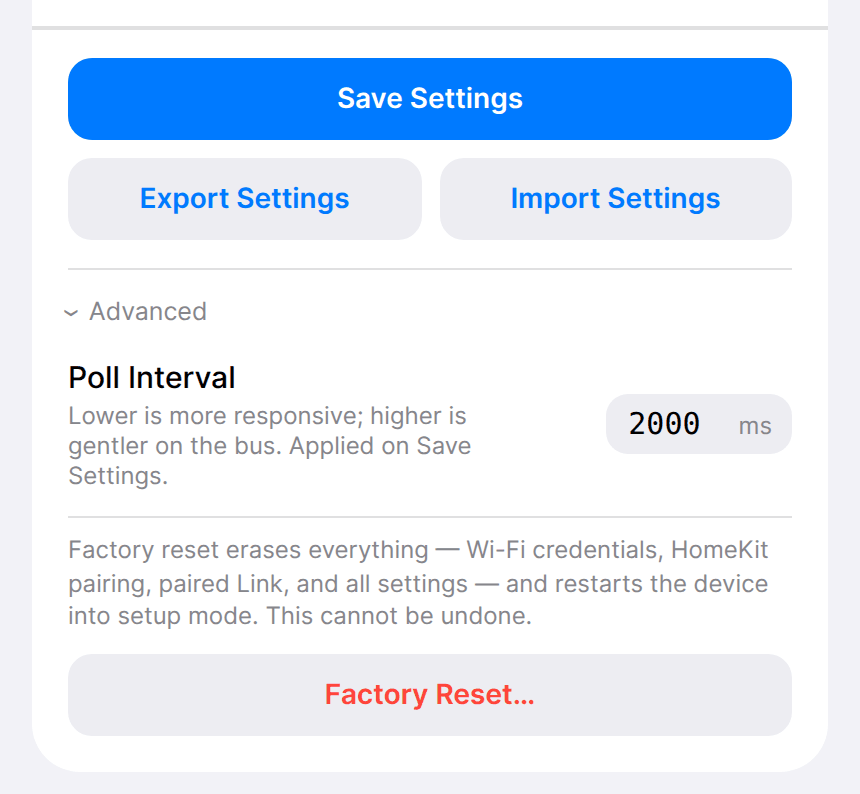
- Back up settings: Device > Export Settings.
- Select Device > Advanced > Factory Reset…. Type
ERASEand confirm.
The board button cannot do a factory reset; its longest hold erases only the saved Wi-Fi network. If the web interface is unreachable, use USB recovery with Erase everything first.
Verify the result
After a factory reset or USB reinstall, follow the quick start from network and app setup. Select any room sensors, pair Serin Link again, and confirm that the indoor unit responds to a command.