 serin labs
On this page
For details to include with a support request, see About and Details.
No connection to the Serin Controller
A power failure or tripped breaker can break the controller connection. Serin Link searches automatically and allows three seconds for recovery before showing CONTROLLER OFFLINE. Searching continues behind the warning.
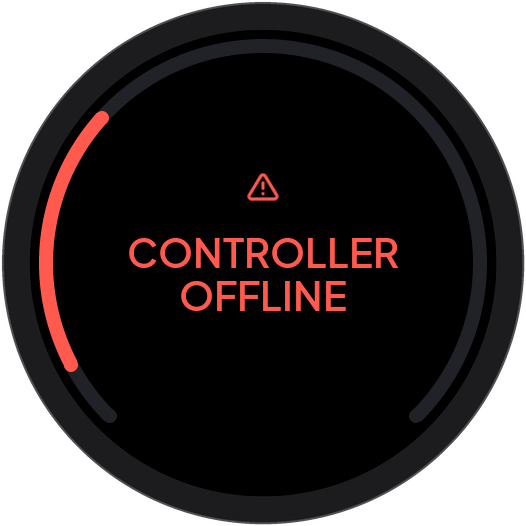
Tap the notice or push the knob for recovery instructions:
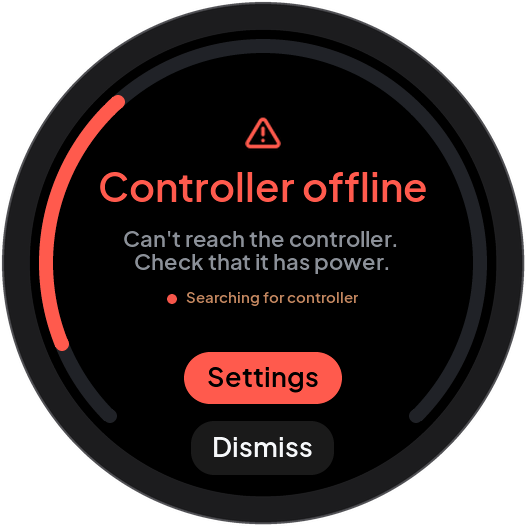
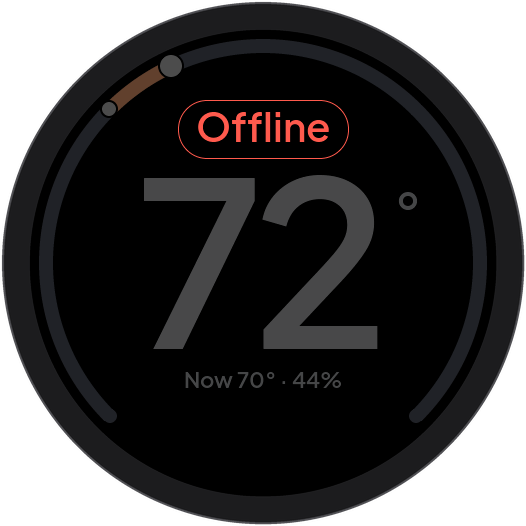
Tap Dismiss or push to return home, or tap Settings to open Settings → Controller. The red Offline label remains; old readings dim. Tap Offline to reopen the explanation. Control resumes automatically when communication returns.
The controller web page uses a separate wireless connection and may still work. If this happens after an update check, record both firmware versions and that sequence for support.
Heat pump, Wi-Fi, and synchronization problems
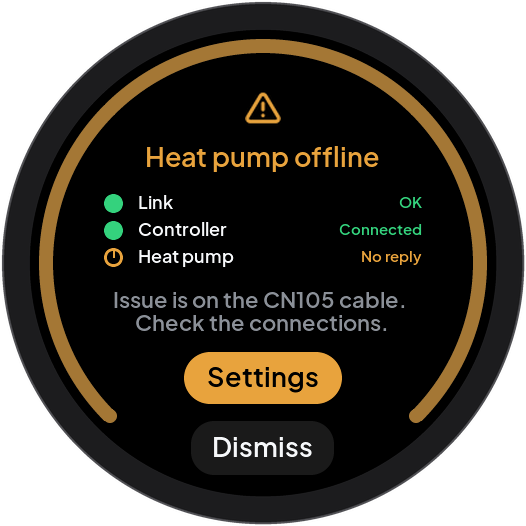
If the controller cannot reach the heat pump, Serin Link shows HEAT PUMP OFFLINE across the full screen. Tap it or push the knob to see which part of the chain fails. Heat pump shows No reply when the CN105 connection fails. Tap Dismiss to return home. An amber Offline status label stays until the connection recovers. Tap Settings to open the Heat Pump status.
Scroll sideways to read all columns.
| Condition | What failed and what to do |
|---|---|
| Controller offline | The wireless path between Serin Link and the controller is unavailable. Check controller power. Reduce the distance if necessary. |
| Heat pump offline / CN105 Not connected | The controller cannot exchange data with the heat pump over the CN105 cable. Check its connection using the installation instructions. |
| Communication-error count | The controller reports serial communication errors. Check whether the count continues to increase. Record the count for support. |
| Wi-Fi Offline | The controller has no home network connection. Check the router and network details under Settings → Wi-Fi. |
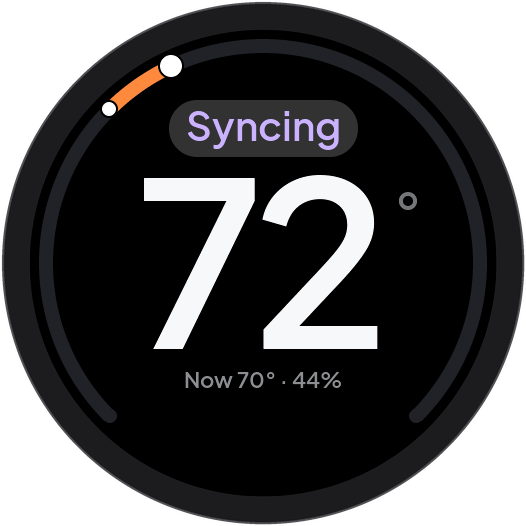
| Syncing | Serin Link is waiting for current controller state. Until syncing ends, Serin Link does not change the temperature, mode, or airflow. A mode selection or the Airflow menu item returns to the home screen without a change. Wait, then make the change again. If it persists, check Settings → Controller. |
Wi-Fi loss and controller radio loss are different conditions. Home apps and network functions need Wi-Fi. Local Serin Link control can continue without Wi-Fi when its controller radio connection and CN105 connection work.
Inspect serial status in Settings → Advanced → Heat Pump and further diagnostics in About → Details. Follow the CN105 installation instructions before handling connections. Contact support if communication does not recover.
Change pending
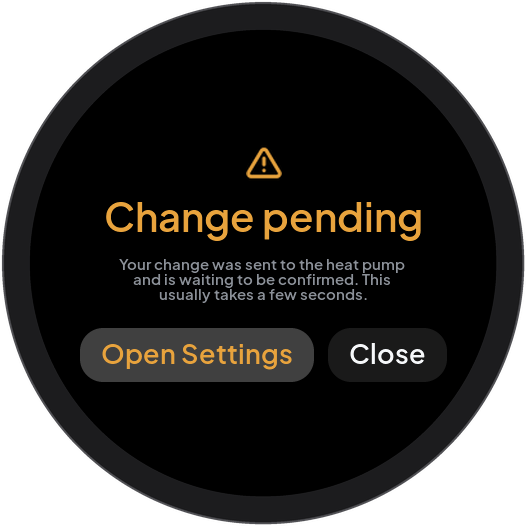
CHANGE PENDING means that Serin Link sent a command and awaits confirmation. Wait for the controller to report the result. Tap the label to read the explanation. If the message persists, tap Open Settings to see the Heat Pump status. Do not treat the displayed target as confirmation that the heat pump applied the command.
Heat pump fault
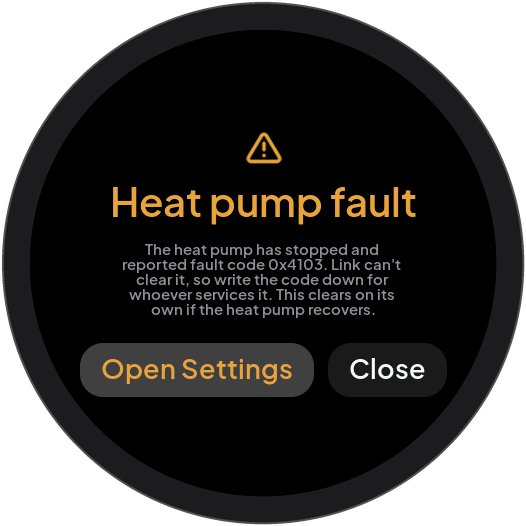
- Tap HEAT PUMP FAULT on the home screen.
- Record the reported fault code, if one is available.
- Tap Open Settings to see the Heat Pump status.
- Give the code and symptoms to the heat pump service technician.
Serin Link cannot clear a heat pump fault. The warning disappears if the heat pump recovers. A fault code is different from a lost connection to the controller.
Low sensor battery
LOW BATTERY warns that a room sensor battery is low. Heating and cooling continue normally.
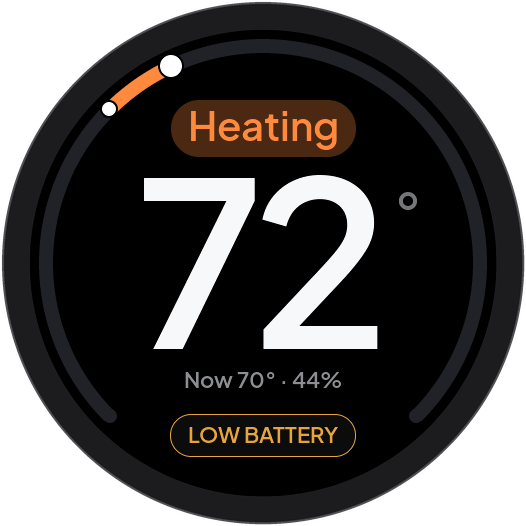
Tap LOW BATTERY for details. Dismiss 24h hides it for 24 hours:
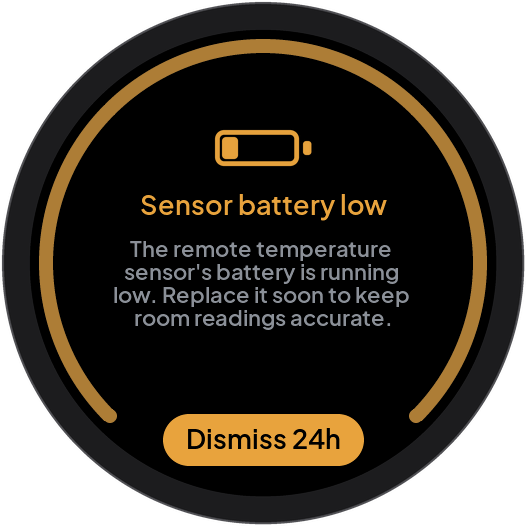
Restarting Serin Link clears the dismissal. The warning returns if the battery is still low.
Pairing recovery
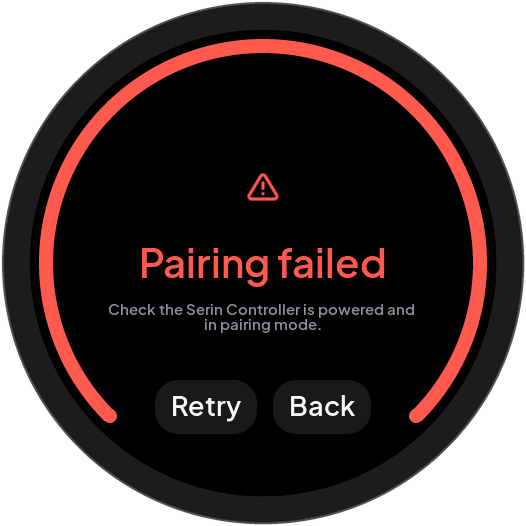
If Pairing failed appears:
- Check that the intended controller has power.
- Open its pairing window again.
- Tap Retry on Serin Link. With no zones, a knob push also retries.
- Keep the pairing window open until the search completes.
With ESPHome, a controller pairing diagnostic of storage-error means that the new bond was not saved. The controller keeps any previous bond. Check its log and storage before retrying.
With existing zones, Back or a knob push returns to Settings without removing them. During a search, tap Cancel or hold the knob to stop.
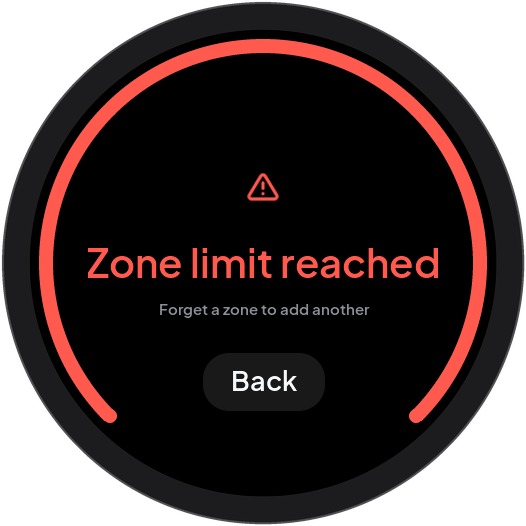
Zone limit reached means that Serin Link cannot add another zone. Tap Back. Forget one zone before you add another. Serin Link supports up to seven zones.
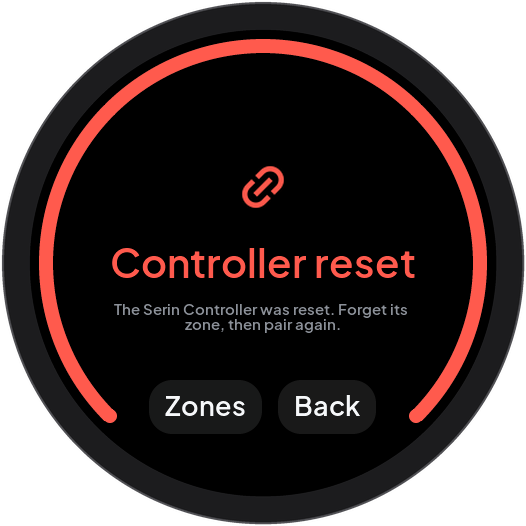
Controller reset means that the controller no longer has the expected pairing. Use Zones, when available, to select the affected zone. Otherwise, tap Back. Check the zone name under Settings → Controller. Forget that zone. Then pair Serin Link with that controller again.
Unavailable sensor readings
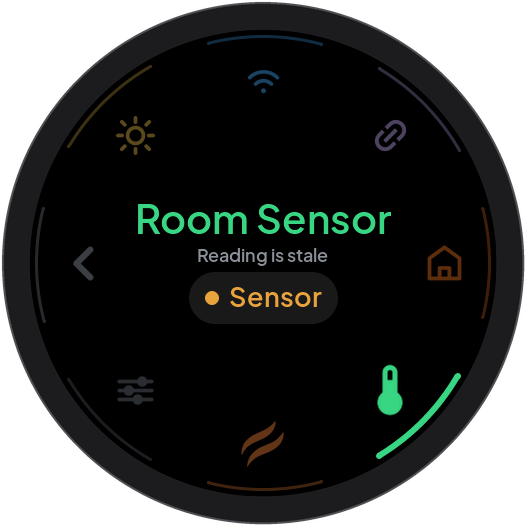
Scroll sideways to read all columns.
| Message | Meaning and action |
|---|---|
| Reading is stale | The controller reports that the measurement is too old. Check sensor power and range. Select another available source if necessary. |
| No reading available | The controller has no usable reading from this source. Check its configuration and power. Select another available source. |
| No sensors available | The source list is empty. Select Back. Check the controller and its sensor configuration. |
| Sensor no longer available | The highlighted source disappeared from the list. Highlight another source, then push the knob. |
| The controller lists no sensors to choose from. | The controller offers no source list. Add a sensor in the controller web interface, then open Room Sensor again. |
| Controller does not offer source selection | This controller does not report source-selection support. Use its firmware configuration instructions. |
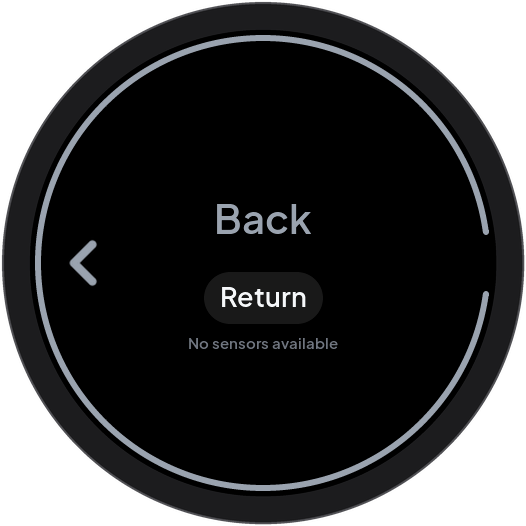
A stale or missing reading does not prove that the controller changed sources. Fallback depends on the controller firmware. Check its Room Sensor status and instructions before you rely on automatic fallback.
For ESPHome, selecting an external sensor reuses its last reading only while that reading is fresh. Selecting a stale or unavailable source does not send its old temperature again. The climate’s configured remote-temperature timeout determines when it returns to its internal source.
Retry, cancel, or return later
To leave an active session, see Cancel Wi-Fi setup.
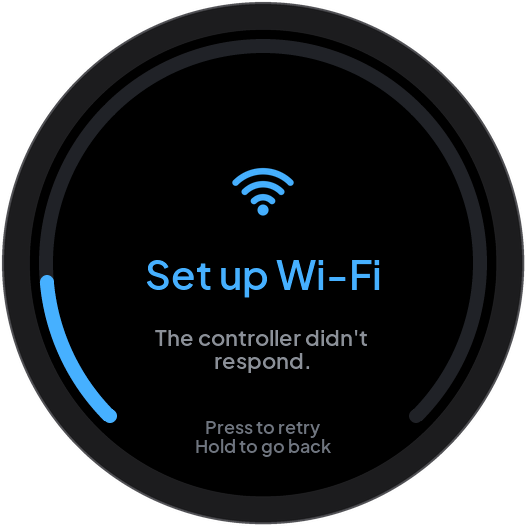
If The controller didn’t respond. appears after approximately 15 seconds:
- Check controller power and the connection to the controller.
- Push the knob to retry the setup request.
- Wait for the hotspot QR code.
Setup screens close after inactivity. During a network change, supported controllers must confirm cancellation before Serin Link returns home. Follow any recovery message if the hotspot remains open or cancellation is unconfirmed. Reopen Settings → Wi-Fi, HomeKit, or Matter to continue. Check the current state before starting again.
Pairing status and missing codes
Scroll sideways to read all columns.
| Status | Meaning and action |
|---|---|
| Paired | The controller reports an existing home pairing. Normal Settings entry does not reopen the setup QR screen. |
| Ready to pair | The controller reports no home pairing. Push the knob to display its code while the controller is online. |
| Controller offline | Serin Link cannot reach the controller. Restore that connection before you attempt home pairing. |
| Not paired | Serin Link has no controller pairing. Tap Pair to start pairing. |
| Code appears without a QR image | Use manual code entry, or wait for the controller to supply QR data. |
--- instead of a code |
No usable code is available yet. Check the controller connection and its web interface. |
| HomeKit, Matter, and Home are absent | The controller does not advertise home-pairing support to Serin Link. Follow its firmware instructions. |
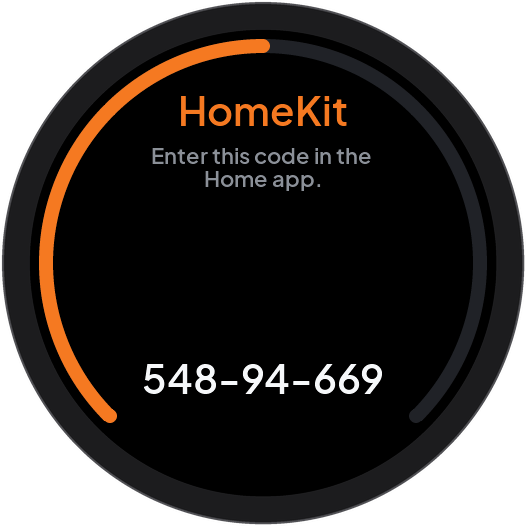
The setting’s name comes from the controller’s pairing data. It can be HomeKit, Matter, or Home. Paired does not prove that the phone, home hub, or controller Wi-Fi connection is currently working.
Serin Link has no general action to remove a home pairing. Forgetting a zone and Reset Link remove Serin Link data, not the controller’s HomeKit or Matter pairing.
Update failure
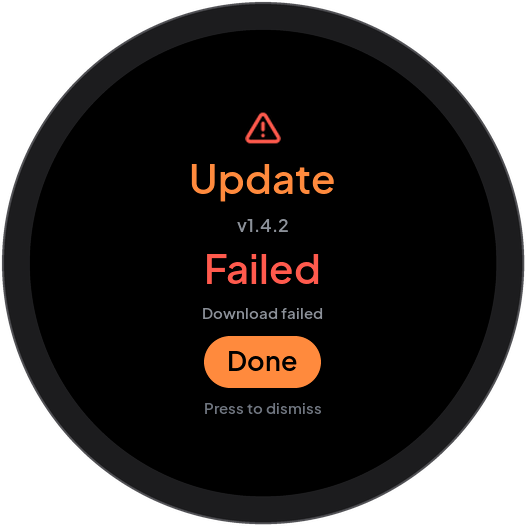
Scroll sideways to read all columns.
| Failure reason | Meaning |
|---|---|
| Controller unreachable | No reply to the request for update connection details. |
| Controller has no Wi-Fi | No saved network is available to share. |
| Wi-Fi failed | Serin Link could not connect for the update. |
| Update check failed / Download failed | The update transfer failed. |
| Bad manifest | Update information could not be used. |
| Wrong board image | Firmware is for another Serin Link model; current firmware is kept. |
| Link busy, try again | An update task could not start. |
Serin Link checks the server certificate against internet time, falling back to its firmware build date. If the certificate is newer than that date and internet time is unavailable, Update check failed appears.
- Record the failure message.
- Tap Done, or push the knob to dismiss it.
- Check controller power, Wi-Fi, and internet access.
- Open Settings → About → Details → Update to retry.
- Contact support if the failure continues.
If your screen looks slightly different, your firmware version can be different from the version that this manual describes.