 serin labs
On this page
Adjust Link’s screen and controls here. These preferences are separate from the heat pump’s temperature and airflow settings.
Settings
In this manual, Settings means Home screen → push knob → Menu → Settings. In the Menu, highlight Settings. Push the knob to open it.
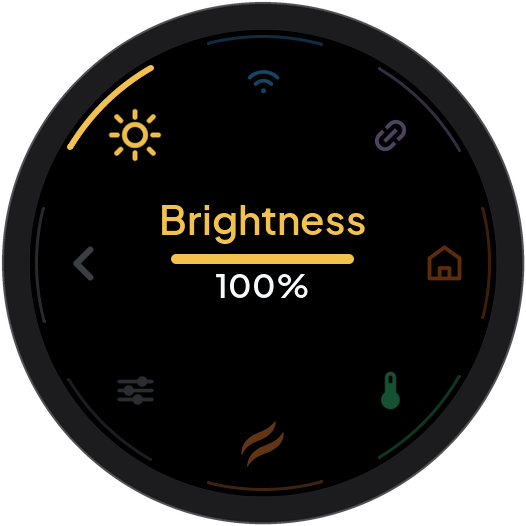
Turn the knob to highlight an item, then push it to use the action shown in the center. With touch, tap an icon to select it, then tap the central action when available. Brightness enters adjustment directly; Advanced opens directly. Tapping Link starts pairing if no controller is paired. Select Back to return to the Menu.
Brightness
- In Settings, highlight Brightness.
- Push the knob to enter adjustment mode.
- Turn the knob to change brightness.
- Push the knob to leave adjustment mode.
The range is 10–100%. Alternatively, tap or slide along the brightness track. Idle and Night settings can reduce actual brightness below this value. Refer to Advanced settings.
Advanced settings
- Open Settings.
- Highlight Advanced.
- Push the knob to open Advanced.
- Turn the knob to highlight the required item.
Units, Idle screen, Night, and Transitions
These items use the same adjustment procedure:
- Highlight the item in Advanced.
- Push the knob to enter adjustment mode.
- Turn the knob to select an option.
- Push the knob to leave adjustment mode.
Alternatively, tap the item’s ring icon. Then tap the required option in the center. A touch selection also enters adjustment mode. Push the knob before you use knob turns to browse other items.
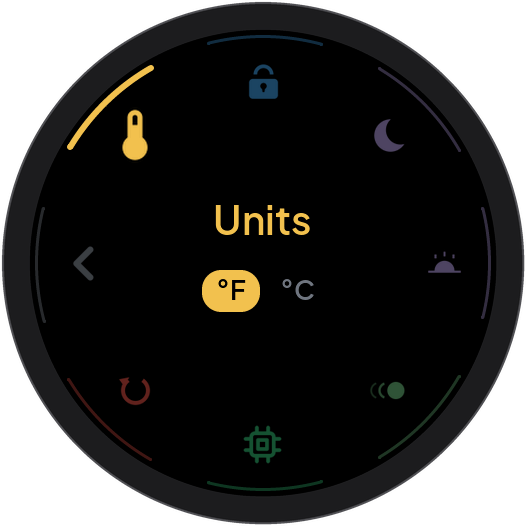
Units: select °F or °C. Changes apply immediately.
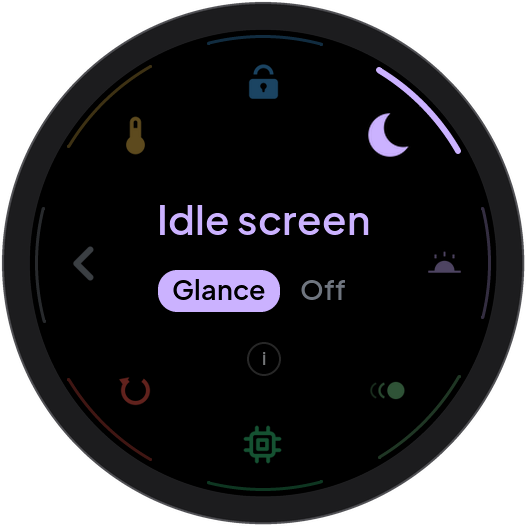
Idle screen: select Glance for a dim temperature display, or Off for a dark screen after inactivity.
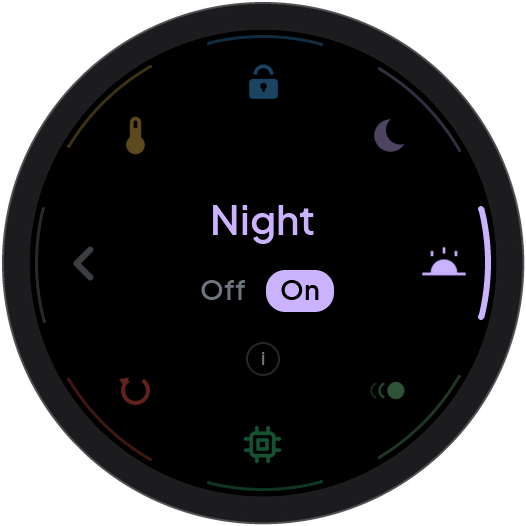
Night: select On to permit the controller’s night signal to limit brightness. Select Off to ignore that signal. Link receives the night-active state from the controller. This screen does not set night hours.
Display behavior varies by board. See the display reference.
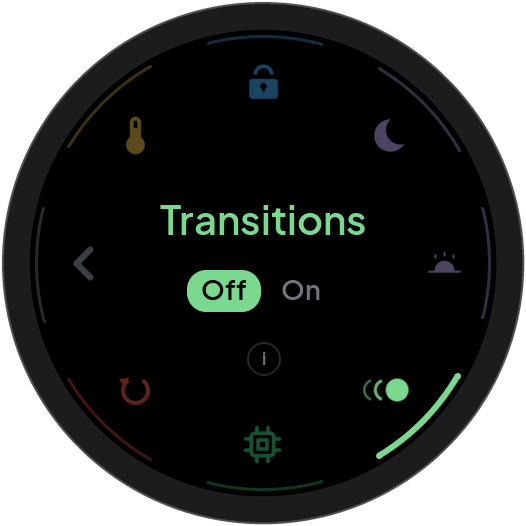
Transitions: select On for fades between screens, or Off for immediate screen changes.
An i button appears below Child Lock, Idle screen, Night, and Transitions. Tap it for an explanation. Push the knob to close the explanation.
Child Lock
- In Advanced, highlight Child Lock.
- Push the knob to enter adjustment mode.
- Turn clockwise to select On.
- Push the knob to leave adjustment mode.
- Hold the knob to return home.
Alternatively, tap On in the center of the Child Lock screen.
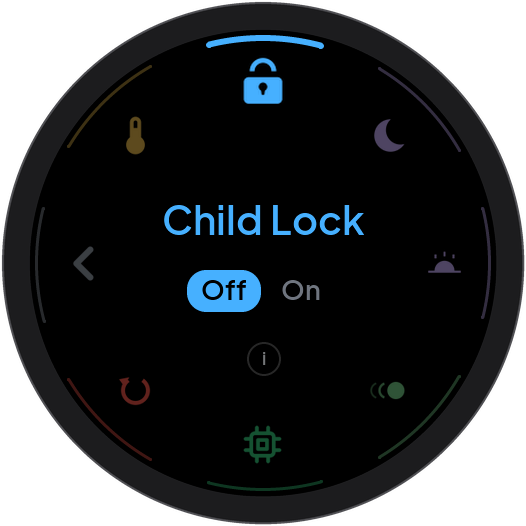
Child Lock blocks ordinary turns, pushes, taps, and swipes on the home screen. It prevents accidental changes to the heat pump controls and access to menus. A blocked action can show Hold to unlock.
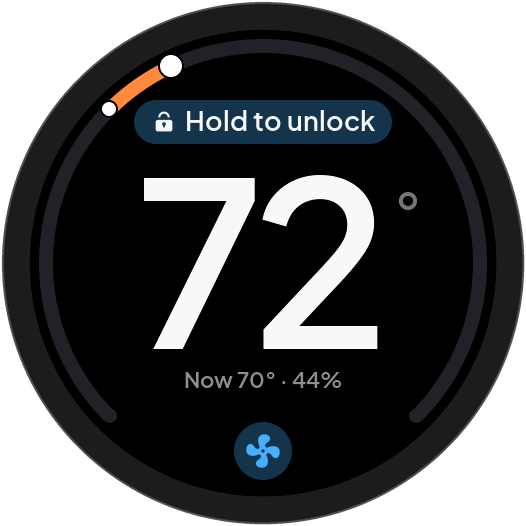
To unlock temporarily:
- Wake the home screen if necessary.
- Keep the knob pushed until the confirmation arc is complete.
- Release the knob.
- Operate the controls normally.
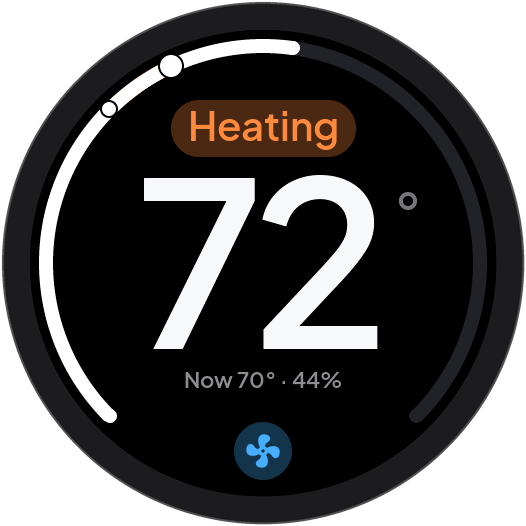
Temporary unlocking leaves Child Lock enabled. After approximately 30 seconds without activity, it locks again. To disable Child Lock permanently, unlock first. Return to Settings → Advanced → Child Lock. Tap Off. For knob operation:
- Push the knob to enter adjustment mode.
- Turn counterclockwise to select Off.
- Push the knob to leave adjustment mode.
Screen dimming and idle display
After approximately 30 seconds without activity, supported displays become dim. After approximately two minutes, the Idle screen setting applies. Glance shows a dim room temperature display. Off makes the screen dark. Refer to Advanced settings for the display differences.
This figure shows Glance:
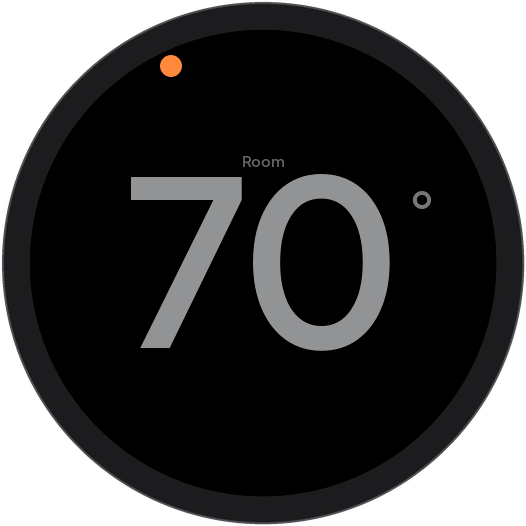
The controller can also dim or turn off the display. See the display reference for controller overrides and differences between displays.
When the screen is dim or shows the idle display, the first touch, knob turn, or knob push activates the screen. This first action does not change a setting.