 serin labs
On this page
Update Link, reinstall its firmware, or clear its settings. For the current firmware versions, see About and Details.
Update Serin Link
Update installs firmware on Serin Link. It does not update the controller. Use the controller web interface or its firmware instructions for controller updates.
The button appears when the controller is online and supports supplying Link’s update connection details. Complete controller Wi-Fi setup before you check. If Update is absent, check the Link connection and controller firmware support.
For ESPHome configuration and credential-sharing requirements, see Update connection requirements.
- Open Settings → About → Details.
- Tap Update.
- Wait while Checking appears.
- If an update is available, check the offered version.
- Tap Install, or push the knob to install.
- Keep Link powered during download, verification, and restart.
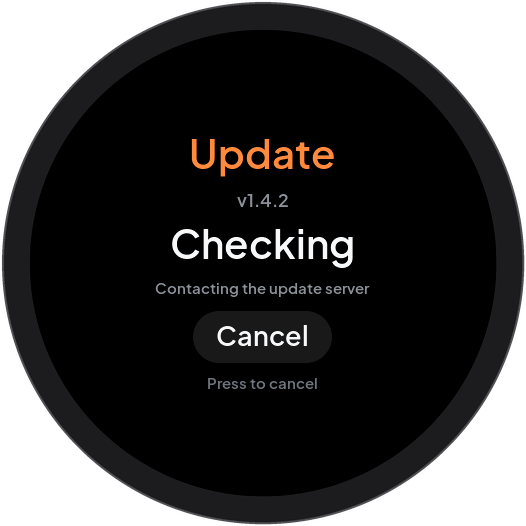
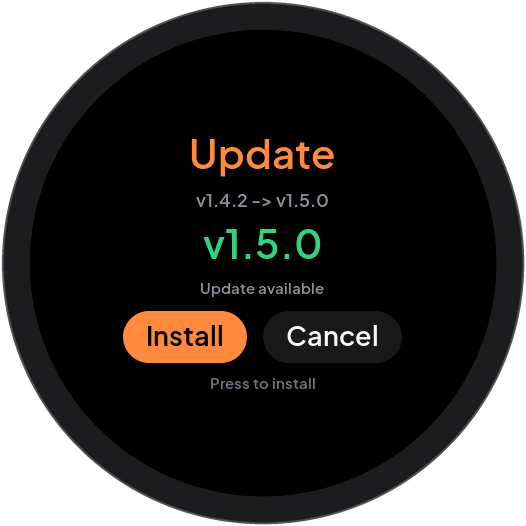
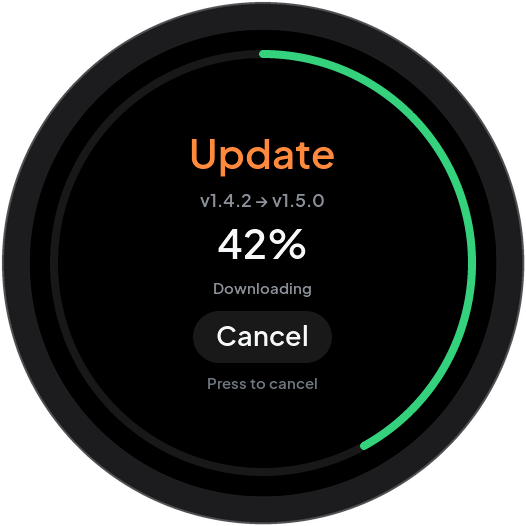
To cancel during Checking or Downloading, tap Cancel, push the knob, or hold the knob. On the version-confirmation screen, tap Cancel or hold the knob. A brief push on that screen starts installation.
If the confirmation screen closes before you choose, check for updates again.
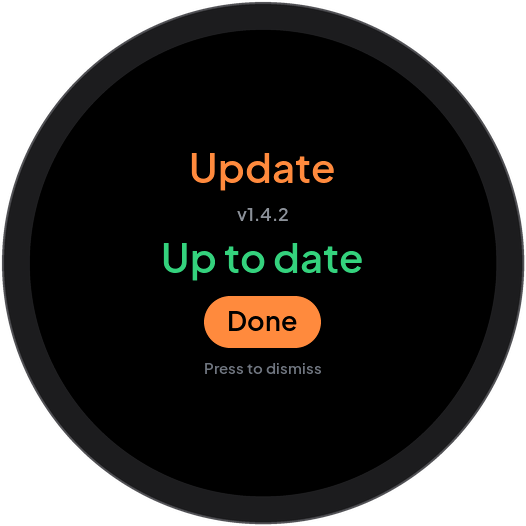
During Verifying and Installed / Restarting, cancellation is unavailable. Wait for Link to restart. If the firmware is current, tap Done or push the knob to dismiss Up to date.
Pairing is preserved; you do not need to pair again.
If an update fails, see Update failure.
Update connection requirements
For ESPHome controllers, enable Connect a Serin Link and Allow Link firmware updates in the YAML generator, then install the configuration. Updates require the controller to share Wi-Fi credentials with Link. See the ESPHome update reference for requirements and how to disable sharing.
Reinstall firmware over USB
Reinstalling firmware over USB with the browser flasher keeps Link’s settings and pairings when Erase everything first is unchecked. Check that box to return Link to its factory state; pair Link with the controller again afterwards. Keep the USB cable connected until the flasher reports completion. The browser flasher provides Try the write again recovery if an installation fails.
The flasher checks every downloaded file before it erases or writes the board. If it reports missing or invalid firmware integrity information, reload the page to fetch the current manifest. This error leaves the board unchanged.
Reset Link
CAUTION: Reset Link erases all Link zone pairings and settings, then restarts. The heat pump keeps running. The controller’s home pairing and Wi-Fi network are not affected.
- Open Settings → Advanced.
- Highlight Reset Link.
- Keep the knob pushed until the confirmation arc is complete.
- Release the knob when Reset link? appears.
- Tap Reset to erase Link, or Cancel to keep its settings.
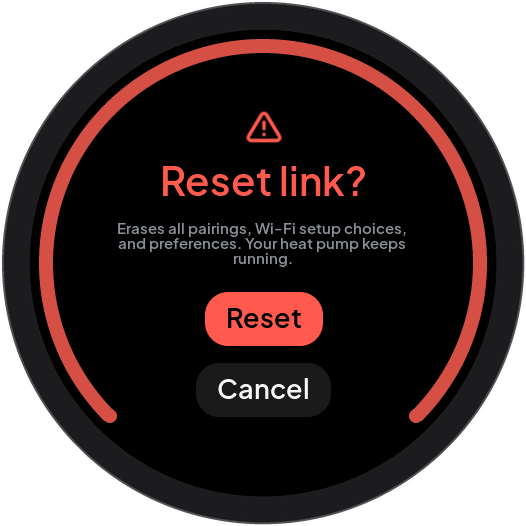
Alternatively, turn the knob to highlight Reset or Cancel in the dialog. Push the knob to apply that choice. An early release during the arc cancels before the dialog opens. After reset, use First power-on and pairing.
Do not keep the knob pushed while you connect power. This starts firmware download mode instead of the normal application. If this occurs, release the knob. Disconnect power. Connect power again with the knob released.