 serin labs
Flash the Serin Link firmware
The entire install runs in this browser tab. Follow the steps on the left; the console on the right shows what the board reports.
Install the Serin Link firmware on a supported VIEWE round display module over USB. The firmware is free and open source, and flashing takes a few minutes.
Checking browser support…
Use a USB data cable. Charge-only cables will not be detected.
STEP 1 OF 4 — CONNECT

Serin Link SAVED IN THIS BROWSER
No device was selected
If your board is missing, choose Show all ports to include other USB adapters. If it still does not appear, check the USB data cable.
The board was disconnected
This does not harm the board. Reconnect it with the same cable and click Connect again.
The connection failed
Selected: . You can change it once the board is read.
Connect the board
Connect the board with a USB data cable, click the button below, and select the board from the list your browser shows. The console on the right displays what is read from the board. Nothing is written until you choose to install.
Connect the board
Click the button and select the board from the list your browser shows. It usually appears under the name of its USB chip, such as "USB JTAG/serial debug unit".
Flash another board
Connect the new board and click Connect. The saved device above is kept; each board receives its own entry.
Board not listed?
On a knob board the knob is the boot button. If the screen is blank and the console reports waiting for download, the board is fine: it powered up with the knob pressed. Release the knob and unplug and replug it.
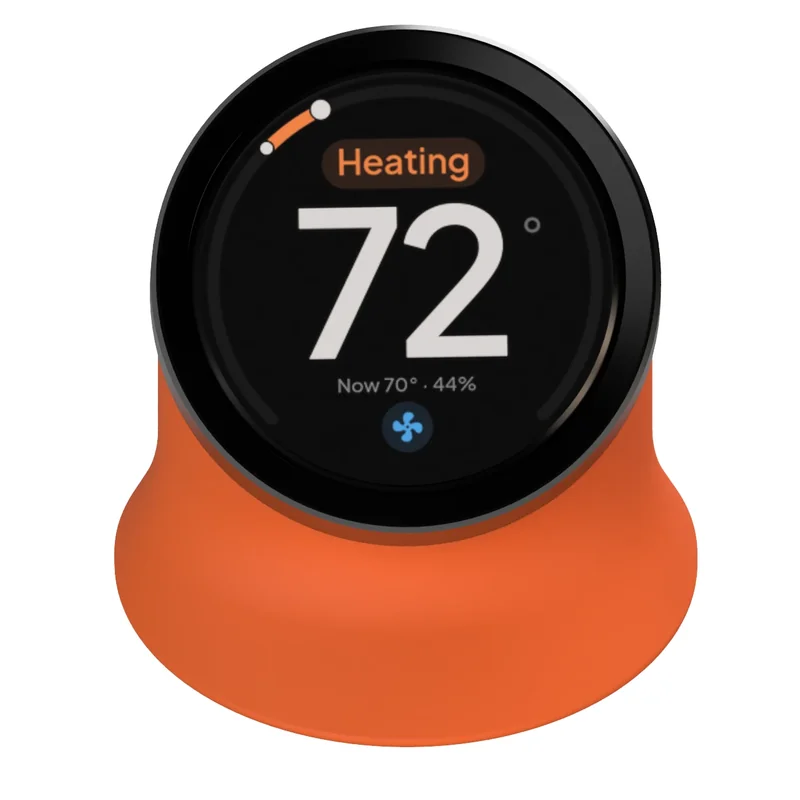
Works with: the VIEWE UEDX46460015 (1.5″) and UEDX48480021 (2.1″) round display modules, both ESP32-S3.
STEP 1 OF 4 — CONNECT
The port opened, but the board did not respond
The most common causes are a charge-only cable, a board that requires the BOOT button held while plugging in, or missing USB serial drivers.
- Try a cable known to carry data, such as one used to sync a phone.
- Hold the board's BOOT button while plugging it in, then click Connect again.
- Older boards require a one-time installation of the CP210x or CH340 drivers.
STEP 1 OF 4 — CONNECT
This chip is not supported
The board identified itself as an older ESP32. The Serin Link firmware requires an ESP32-S3. The cable and connection are working; this chip cannot run Serin Link firmware.
A VIEWE round display module is required
The Serin Link firmware only runs on the ESP32-S3 based VIEWE UEDX46460015 (1.5″) or UEDX48480021 (2.1″) round display modules.
STEP 1 OF 4 — CONNECT
This browser does not support USB flashing
Safari and Firefox do not support Web Serial, which flashing requires. This is a browser limitation, not a problem with your board or cable.
Open this page in Chrome, Edge or Brave
All three work on Windows, macOS and Linux. Copy the link below and open it in one of them. The board does not need to be connected until then.
AVAILABLE IN THIS BROWSER
STEP 2 OF 4 — CHOOSE YOUR DISPLAY
Supported chip, untested board
This ESP32 board is not recognized by its USB id. The firmware targets the chip, so it should work, but this exact board has not been tested.
An error occurred
Select your display
Your board is supported. Pick the display you have. The two builds differ only in panel driver; installing the wrong one shows a blank or scrambled screen and is fixed by flashing the other.
Not sure which you have? Measure the glass: about 1.5 inches (38 mm) across is the small panel, about 2.1 inches (53 mm) is the large one.
The board already runs . Reinstalling the same version is safe and can repair a corrupted install.
This build is older than the installed version (). Settings from the newer version may be lost.
Installing resets settings and pairings. This happens even when "Erase everything first" is unchecked. Pair Link again after installation. To update without resetting settings, use Settings → About → Details → Update on Serin Link.
STEP 3 OF 4 — INSTALL
Writing the firmware
Do not disconnect the cable. If it is unplugged, no harm is done; reconnect and restart the installation. The console shows the installation log.
Preparing the write
Next step: pair Serin Link with your controller.
STEP 3 OF 4 — INSTALL
The installation did not finish (0%).
Check the device console for the error. The board can normally be recovered by starting the installation again.
Before trying again
- Reseat the USB cable at both ends. Avoid hubs; connect directly to the computer.
- Close other tabs or applications that may be using the port, such as a serial monitor or another flasher.
STEP 4 OF 4 — FINISHED
Firmware installed
First-time pairing: follow the pairing guide to prepare your controller and pair Link.
If the screen stays blank after the install, unplug the board and plug it back in. Some USB setups hold the chip in download mode after a flash; a power cycle starts the firmware.
To reset Link, open Settings → Advanced → Reset Link and follow the reset instructions. Keep the knob released when connecting power; holding it starts download mode.
AVAILABLE FROM YOUR PHONE
Need a Serin Link? Choose your color →