 serin labs
On this page
Room Sensor identifies the temperature source that the controller reports for heat pump control. Other measurements can appear in About → Details without controlling the heat pump.
Scroll sideways to read all columns.
| Source name | Meaning |
|---|---|
| Internal | The heat pump’s internal room temperature source. |
| Sensor | A remote sensor source supplied by the controller. |
| Link | A temperature source from a paired Serin Link with a sensor. |
| A controller-supplied name | The controller’s name for that source, such as a room name. |
The controller supplies the source list and names. The choices depend on its firmware, hardware, and configured sensors. The list can include other names and sources.
Select a temperature source
- Open Settings.
- Highlight Room Sensor.
- Push the knob to open the source picker.
- Turn the knob to highlight the required source around the ring.
- Push the knob to send the selection to the controller.
- Check the source name and status after Link returns to Settings.
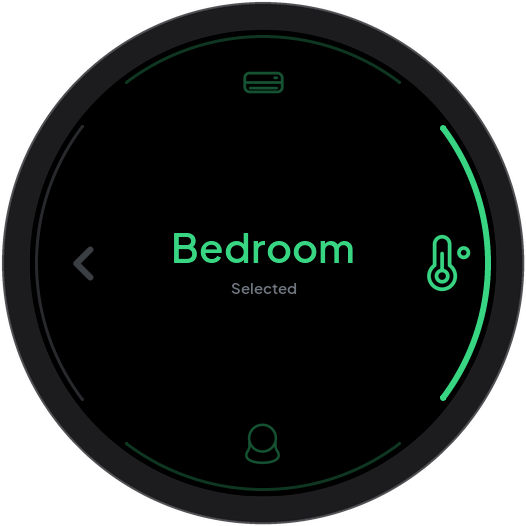
Alternatively, tap a source icon on the ring to select it. Selected identifies the applied source when the controller reports a valid reading. Turning to a source alone does not apply it. If more than seven sources are available, keep turning to show the remaining sources; the center shows the source’s position in the full catalog.
To leave without a change, tap Back on the left of the ring, or turn past the last source and push the knob.
Add or configure a remote sensor
Link has no sensor enrollment screen. Configure the sensor at the controller before you select it on Link.
For HomeKit-compatible or Matter-compatible controller firmware with a Room Sensor card and Bluetooth support:
- Supply power to a compatible Bluetooth thermometer.
- Open the controller web interface.
- Open its Room Sensor card.
- Enable Enable Remote Sensors if it is off.
- Select Add Sensor….
- Select your thermometer from the scan results.
- Check that the card shows a current temperature for the new sensor.
- On Link, use Select a temperature source.
If the scan does not find your sensor:
- Select Enter address manually… in the controller card.
- Enter the sensor’s Bluetooth address.
- Select Add.
- Check for a current temperature before you select the source on Link.
Use Manage Sensors in the controller web interface to rename or remove a sensor, or change its calibration offset. The controller firmware supplies these controls. They are not Link settings. See the controller’s remote sensor instructions for compatible sensor types and configuration details.
For ESPHome, configure the remote temperature entity with the Serin YAML generator. Install that configuration as instructed by the generator. Available Link source choices depend on that controller configuration.
For missing or old measurements, see Unavailable sensor readings.