 serin labs
These tools are in the web interface of HomeKit-compatible and Matter-compatible firmware. For ESPHome, back up the YAML in the ESPHome dashboard and use its logs, as described at the end of this page.
On this page
Back up and restore settings
On HomeKit-compatible and Matter-compatible firmware, save a copy of the controller's settings before you try a pre-release build, return to an older version, switch firmware, or do a factory reset.
- Open the web interface and expand Device.
- Select Export Settings. Your browser downloads a file named after the controller, for example
living-room-settings.json. - To restore, select Import Settings and choose the file. The settings apply straight away. If the file changes the modes under Unit Capabilities, select Firmware > Restart Device so your app shows them.
Scroll sideways to read all columns.
| The file includes | The file leaves out |
|---|---|
| Device name, °C or °F, vane type, and unit capabilities | The Wi-Fi network and password |
| Separate heat and cool targets for Auto mode | The setup code and app pairing |
| Room temperature source and sensor timeout | A paired Serin Link and its Night Dimming settings |
| The first Bluetooth thermometer | Other thermometers, sensor names, offsets, and the Single or Average choice |
| Poll interval and log level | The Beta updates setting |
On Matter-compatible firmware, the file also includes the thermostat and fan tile names and the Separate Sensor Tiles setting. A file exported from HomeKit-compatible firmware can be imported on Matter-compatible firmware. HomeKit-compatible firmware does not accept a file exported from Matter-compatible firmware.
Copy diagnostics for support
When you contact support about a controller running HomeKit-compatible or Matter-compatible firmware, include the text from Copy Diagnostics. It answers most of the first questions about a controller.
- Open the web interface and expand About.
- Select Copy Diagnostics. The page shows "Diagnostics copied".
- Paste the text into your message or the contact form.
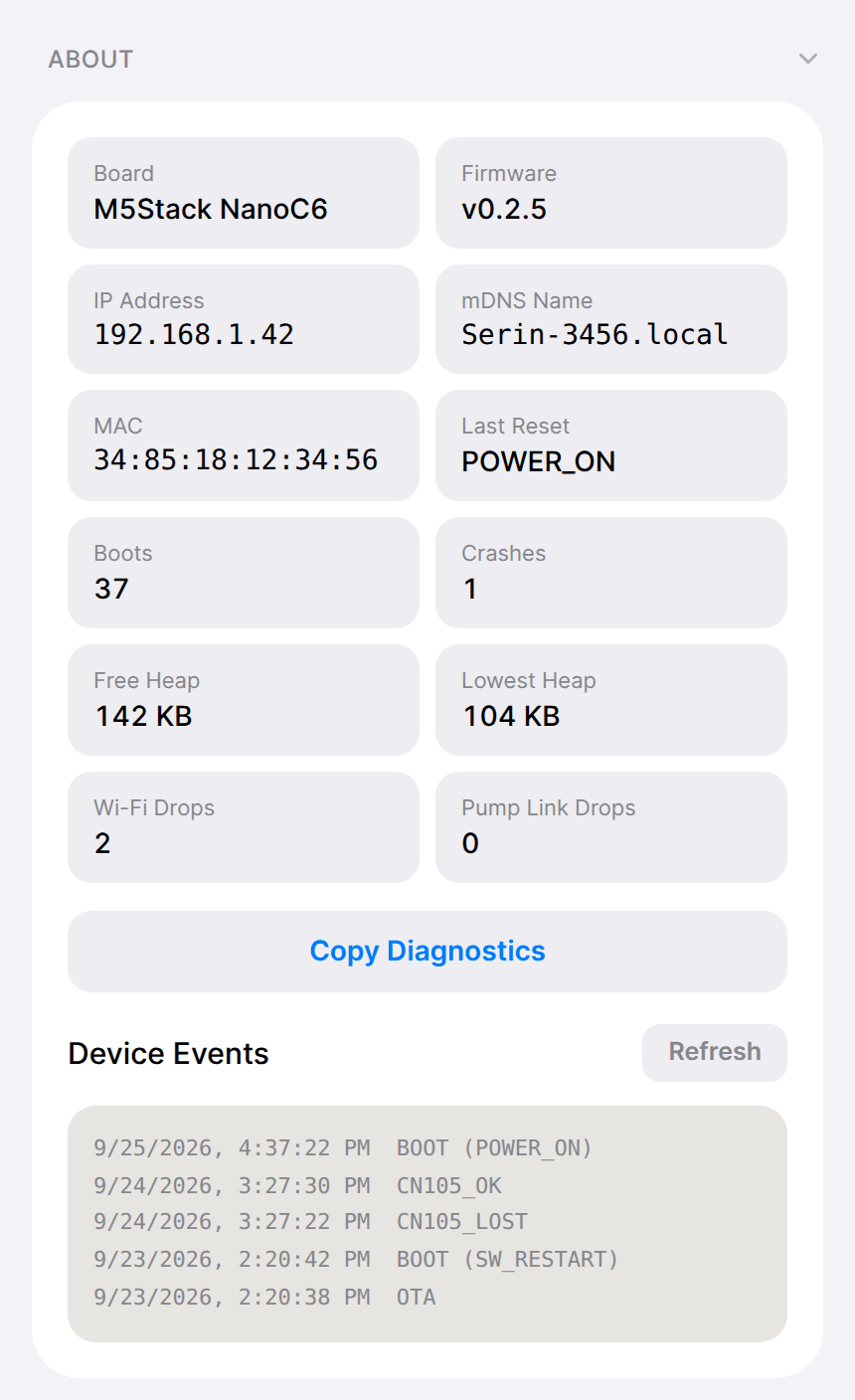
The copied text lists the board, firmware version, network name, signal strength, IP address, MAC address, uptime, restart reason, crash count, the heat-pump connection and any error code, the pairing status, and recent device events. It does not include your Wi-Fi password or the setup code.
Last Reset shows why the controller last started:
Scroll sideways to read all columns.
| Value | What it means |
|---|---|
POWER_ON | Power was switched on or restored. |
SW_RESTART | The controller restarted itself: after an update, a pairing or Wi-Fi reset, or Restart Device. |
BROWNOUT | The supply voltage dropped too low. Check the power source and the cable connections. |
PANIC, TASK_WDT, INT_WDT, WDT | The firmware crashed and restarted. Include the diagnostics text in a support request. |
Read device events
On HomeKit-compatible and Matter-compatible firmware, Device Events, under About, keeps the last 24 events, newest first, and keeps them through restarts. Select Refresh to load new ones. An event shows the date and time, or boot #N and the time since that start if the controller had not yet set its clock.
Scroll sideways to read all columns.
| Event | What happened |
|---|---|
BOOT | The controller started. The reason follows in parentheses, using the Last Reset values above. |
CRASH | The controller restarted after a crash. |
SAFE_MODE | Repeated crashes started safe mode. |
OTA | A firmware update was installed. |
CN105_LOST | The indoor unit stopped answering over the CN105 cable. |
CN105_OK | The indoor unit answered again. |
CN105_ERROR | The indoor unit reported an error code. |
RECOVERY_AP | The backup setup network opened. |
HK_RESET | App pairing was reset. |
WIFI_CREDS | The saved Wi-Fi network changed. (erased) means it was erased. |
Repeated CN105_LOST events point to the cable or connector; see CN105 troubleshooting.
Capture a live log
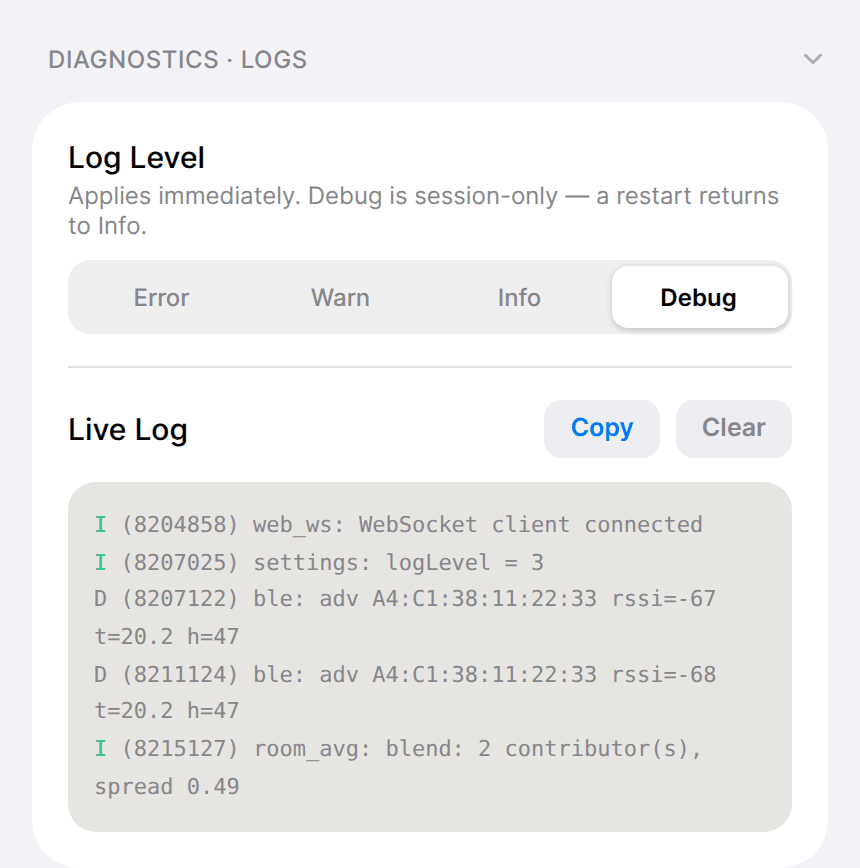
On HomeKit-compatible and Matter-compatible firmware, a live log shows what the controller is doing while a problem happens. Support may ask for one.
- Open the web interface and expand Diagnostics · Logs.
- Under Log Level, select Debug for the most detail.
- Leave the page open and make the problem happen again.
- Select Copy under Live Log and paste the text into your message.
ESPHome
Back up the controller's YAML from the ESPHome dashboard, with any secrets it uses. For logs, select Logs on the controller's card in the ESPHome dashboard, or open the controller's own web page. Diagnostic sensors can be added through the YAML generator.