 serin labs
Control the unit from your smart-home app, the web interface or a paired Serin Link.
On this page
Set the mode and temperature
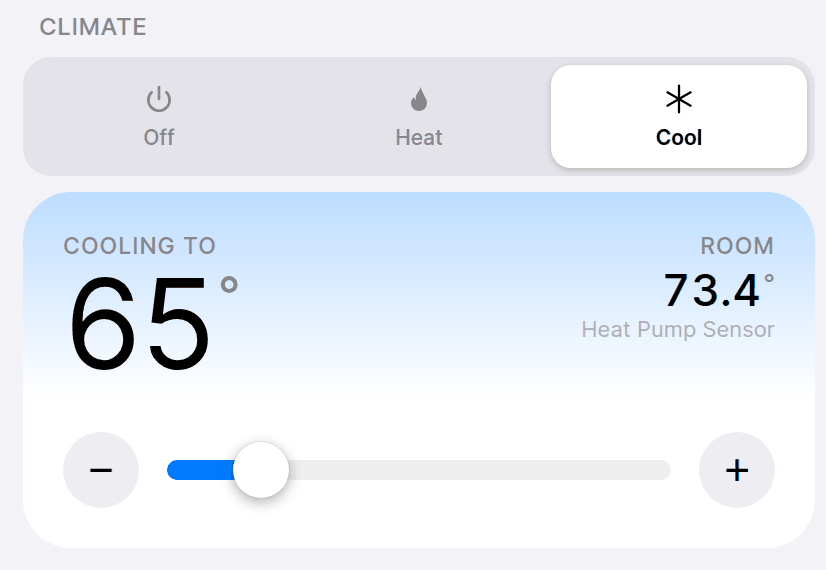
Choose a supported mode and target temperature in your app's thermostat. On HomeKit-compatible and Matter-compatible firmware, use Climate in the web interface. Choose Off to stop heating or cooling.
The web interface provides modes beyond some app thermostat cards. Use it if Dry or Fan-only is absent from your app. Auto mode and separate heating/cooling targets depend on the firmware and configuration; see controls and entities.
Home Assistant's climate entity provides the enabled modes, target temperature and fan setting. A custom configuration can add separate heat and cool targets for Auto mode.
Adjust fan speed and vane direction
Open Airflow in the web interface. Select an available fan speed or vane position. Apple Home has no vane controls; Matter app thermostat cards may omit fan and vane controls too.
Use the climate entity for fan speed and the vertical/horizontal vane entities for direction. The entities present depend on the configuration.
Use indoor-unit settings to hide controls your hardware does not support.
Use the handheld remote or another control
Changes made with the handheld remote appear on the controller. If settings keep changing, check other apps, Serin Link and automations for later commands.
See Serin Link controls for knob gestures.
Check the result
If the indoor unit ignores commands, follow the CN105 control checks.