 serin labs
On this page
Before changing settings
Check the indoor unit's specifications for supported modes and louvers, then back up your settings.
Set modes and temperature ranges
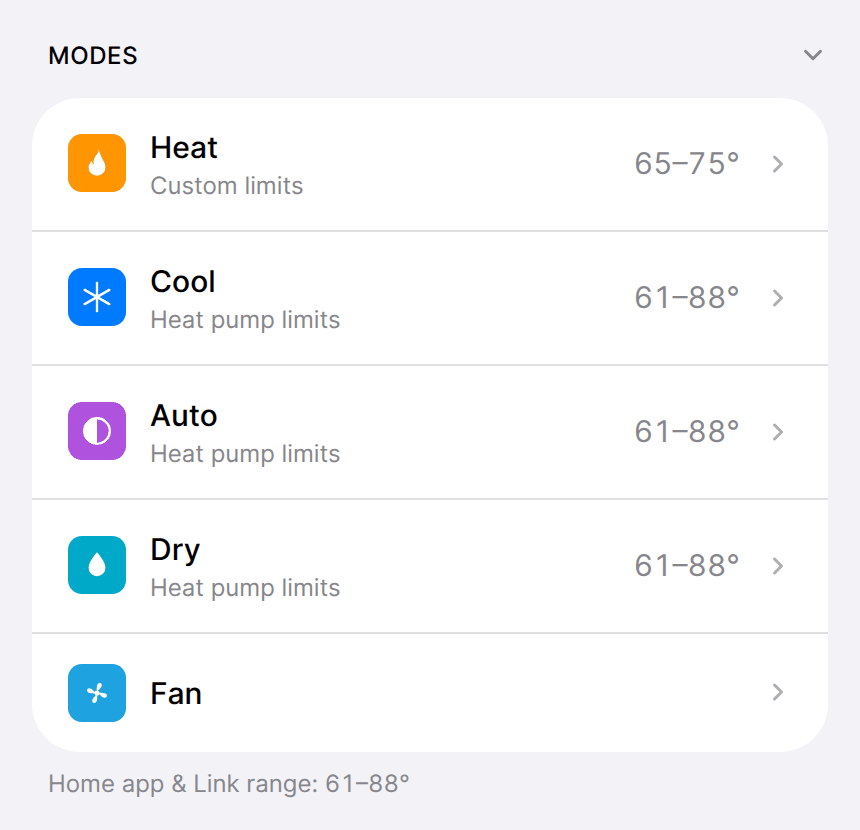
On HomeKit-compatible or Matter-compatible firmware, open the web interface and expand Modes.
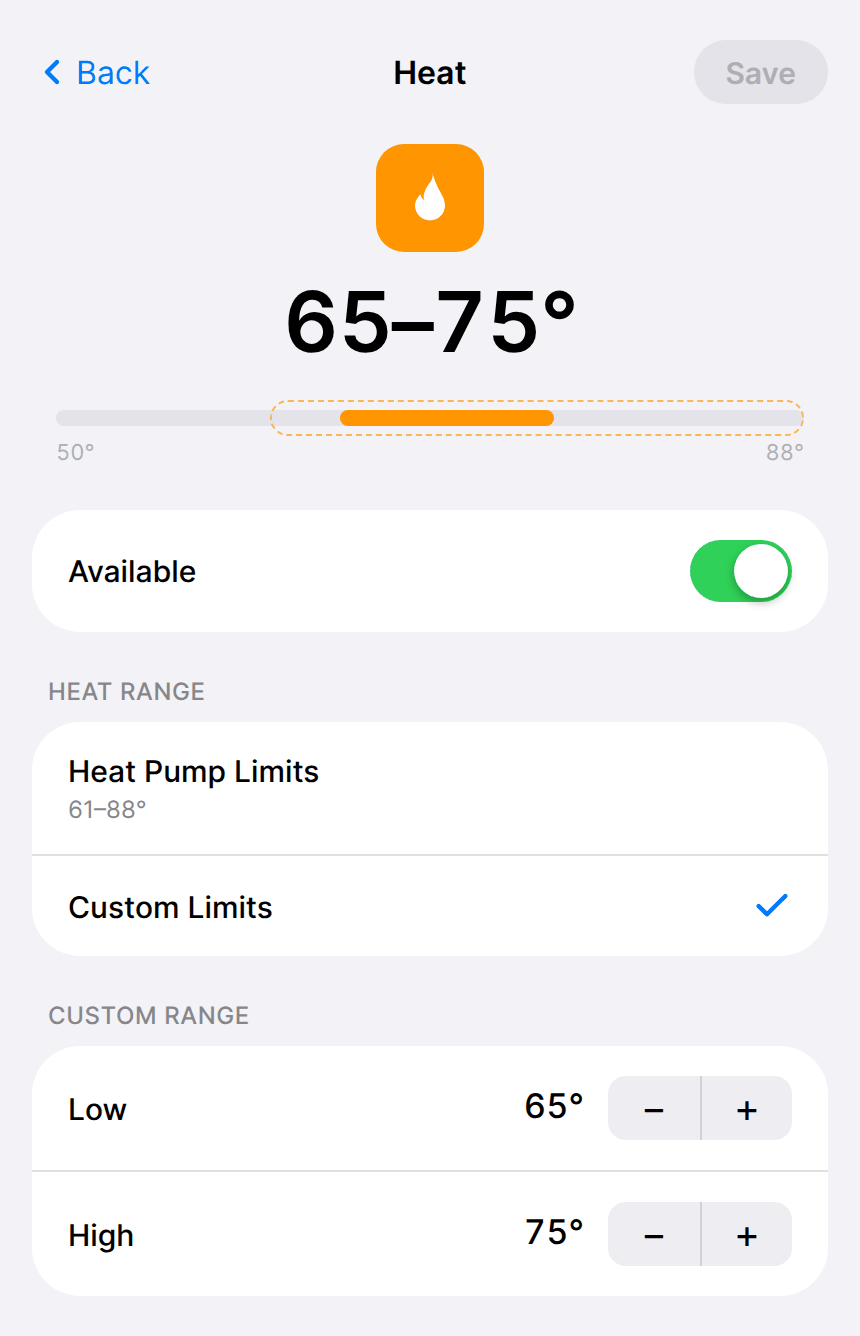
- Select a mode. Turn off Available if the indoor unit lacks it. Auto requires both Heat and Cool.
- Choose Heat Pump Limits to use the range reported by the indoor unit, or Custom Limits to set Low and High.
- Select Save. If you changed availability, select Reboot Now below the mode list so your app receives the change.
The unit may refuse temperatures outside its reported range. Dry shares Cool's range; Fan has no range. The line below the list shows the combined range offered to your app and Serin Link across enabled modes.
Set the vane type
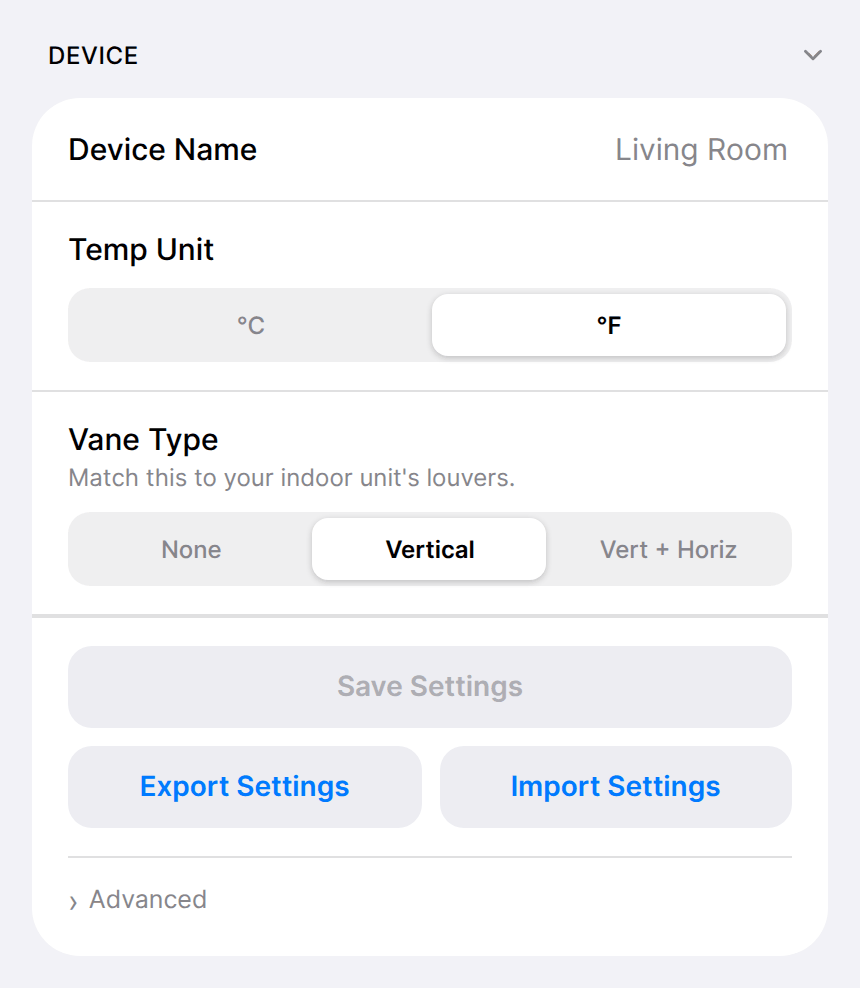
In Device, set Vane Type to match the unit's louvers, then select Save Settings. None and Vertical hide unavailable vane controls.
Set the name and displayed units
In Device, set Device Name and select Save Settings. This names the web interface and a paired Serin Link. Rename the thermostat in your app separately. Temp Unit selects °C or °F and applies as soon as you choose it.
Matter-compatible firmware also has Names & sensors in the Matter section. It sets thermostat and fan tile names. Separate Sensor Tiles adds temperature and humidity tiles after the controller restarts.
Advanced connection settings
Leave Poll Interval at its default unless support asks you to change it. Leave CN105 Baud Rate at 2400 unless the indoor unit never connects. Some models need 9600; use CN105 troubleshooting to decide whether to change it.
See the settings reference for other fields.
Configure ESPHome options
Select fitted vane axes and optional controls through the YAML generator or your configuration. Follow Customize ESPHome.