Use the instructions for the firmware installed on your controller. A wireless update, a Wi-Fi credential reset, and an erased USB installation do different things.
Update firmware
HomeKit-compatible and Matter-compatible firmware
- With the controller connected to your network, open its web interface.
- Open Settings > Firmware Update and choose Check for Updates.
- Install the available release and leave power connected while it updates and restarts.
- Reopen the interface, check the firmware version, and confirm that a climate command reaches the indoor unit.
These builds verify the download and return to the previous firmware if the new version fails validation. HomeKit-compatible firmware also supports manual firmware-file upload from the web interface or with curl; see its source documentation for the command-line upload interface.
ESPHome
After adoption, use Install in the ESPHome dashboard to compile the device's configuration and send it over Wi-Fi. Keep a backup of that YAML and its credentials. When the controller restarts, check that its climate entity is available and that the unit responds. To change included features, follow Customize ESPHome.
If an update fails or the controller stops responding, use update recovery or the USB procedure below.
Change or recover Wi-Fi
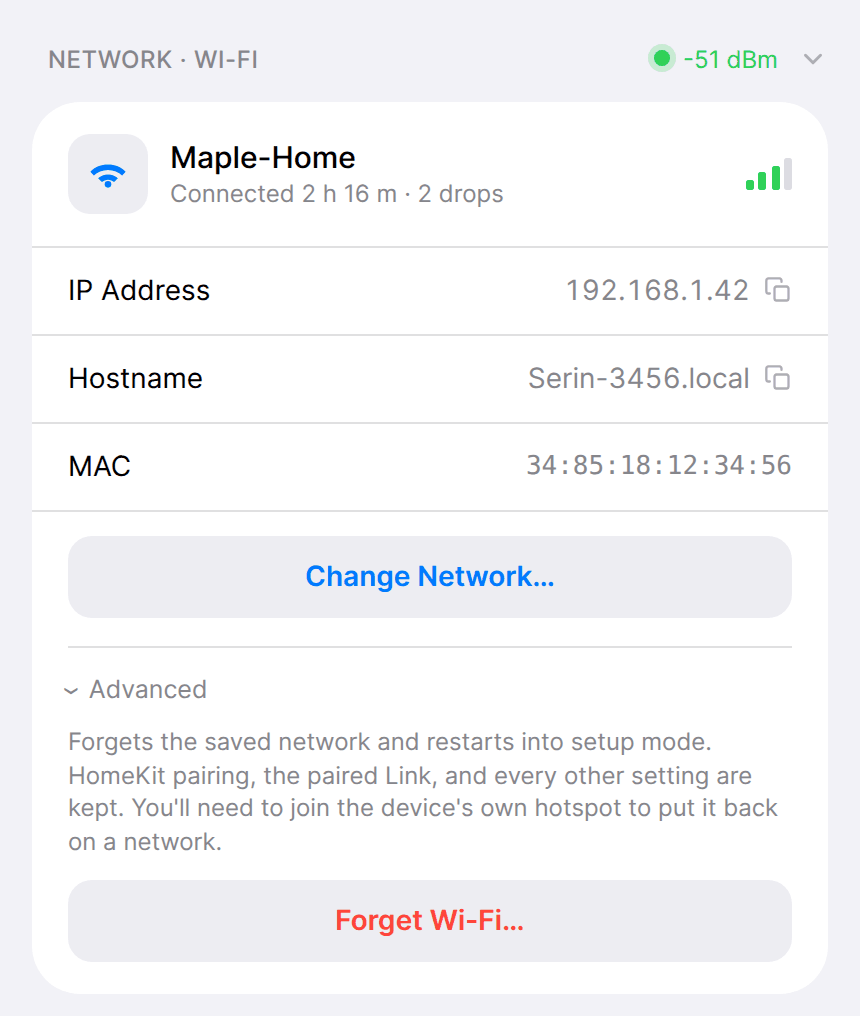
These controllers use 2.4 GHz Wi-Fi. If the controller is still connected but its browser address stopped working, first try its IP address from the router's connected-device list.
HomeKit-compatible firmware
- After five minutes without its configured network, the controller opens a backup setup network named
Serin-XXXX. - Join that network with password
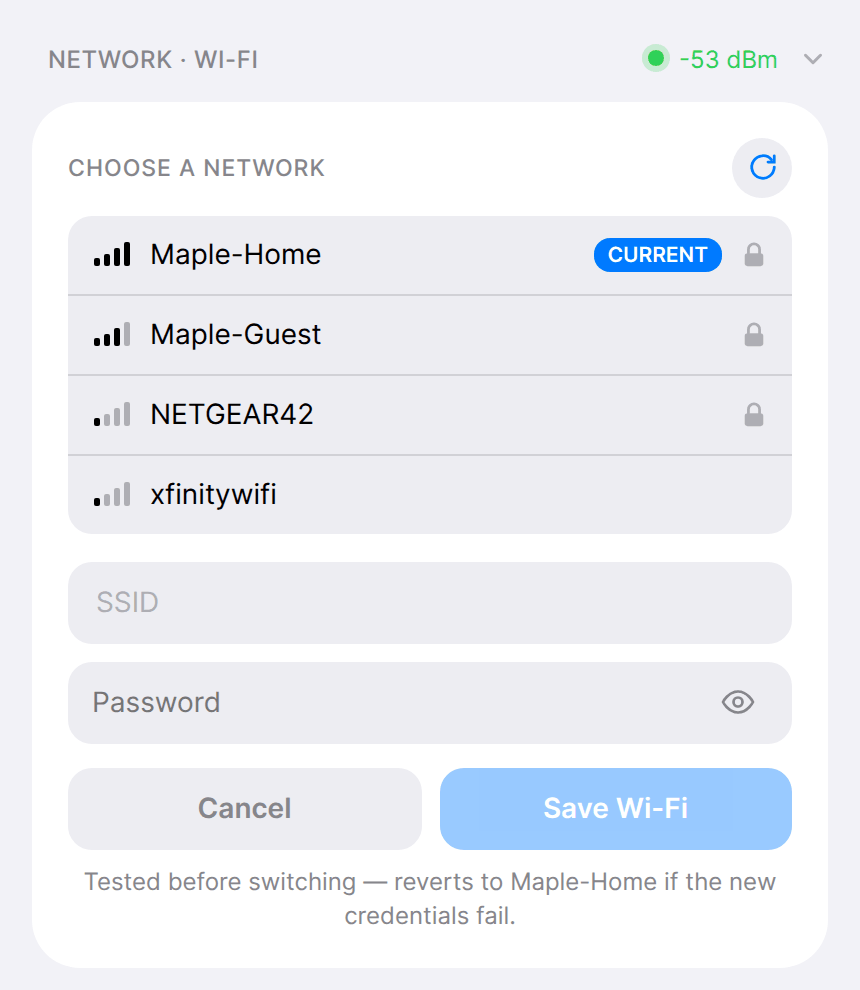
serinlabs, then openhttp://192.168.4.1. - Enter the new network name and password. After the controller reconnects, put your phone back on the home network and check browser and Apple Home control.
To erase the stored Wi-Fi credentials deliberately, hold the board button for 10 seconds. The controller erases the credentials and restarts as soon as the hold reaches 10 seconds, while the button is still pressed. Release during the red warning interval from 7 to 10 seconds to cancel before the reset. This is a Wi-Fi reset, not a full settings reset. Check the button and status-light reference before using a shorter hold, which has a different action.
Matter-compatible firmware
Initial Matter setup receives Wi-Fi credentials from the smart-home app over Bluetooth; use the Matter setup guide for a controller that has never joined a network.
After a previously connected controller loses Wi-Fi, it can open a recovery setup network. Join Serin-XXXX with password serinlabs, open http://192.168.4.1, and enter the new network details. The button reference covers the credential-reset action. Once reconnected, check the web interface and the thermostat in your app.
ESPHome
The standard configuration provides a fallback network named serin-XXXXXX, password serinlabs, when it cannot connect. Join it and open http://192.168.4.1 to enter credentials. If you customized the configuration, use the fallback network settings in your YAML. Keep the Wi-Fi settings or secrets in your ESPHome configuration current before your next installation.
The browser installer can also send Wi-Fi credentials over USB. Disconnect CN105 before connecting USB, following the procedure below. ESPHome does not use the HomeKit button-reset behavior.
Reset Apple Home pairing
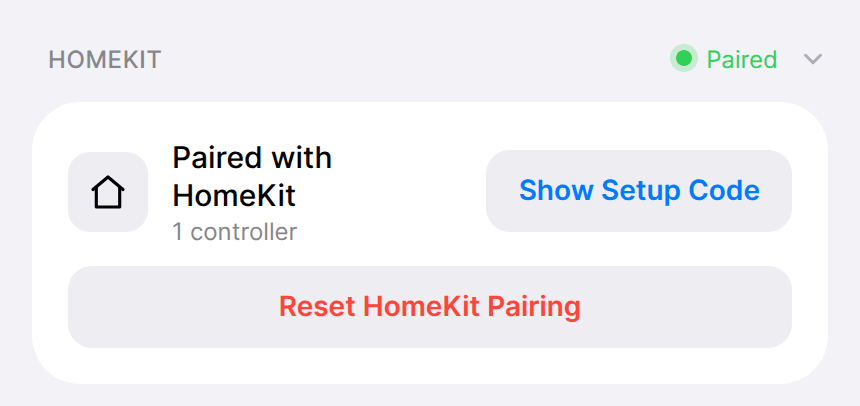
For HomeKit-compatible firmware that was previously paired, open its web interface and select Reset Pairing. Then follow Apple Home setup to add it again using the displayed QR or setup code. This is separate from changing Wi-Fi credentials.
For Matter commissioning problems, use the Matter guide and troubleshooting; the Apple Home reset instructions above describe the HomeKit-compatible build.
Reinstall, erase settings, or change firmware
- Turn off HVAC power at the breaker. Disconnect the controller from the CN105 cable before connecting USB. USB must be its only power source during flashing.
- Connect to a computer with a USB-C data cable and open the firmware flasher in Chrome, Edge, or Brave.
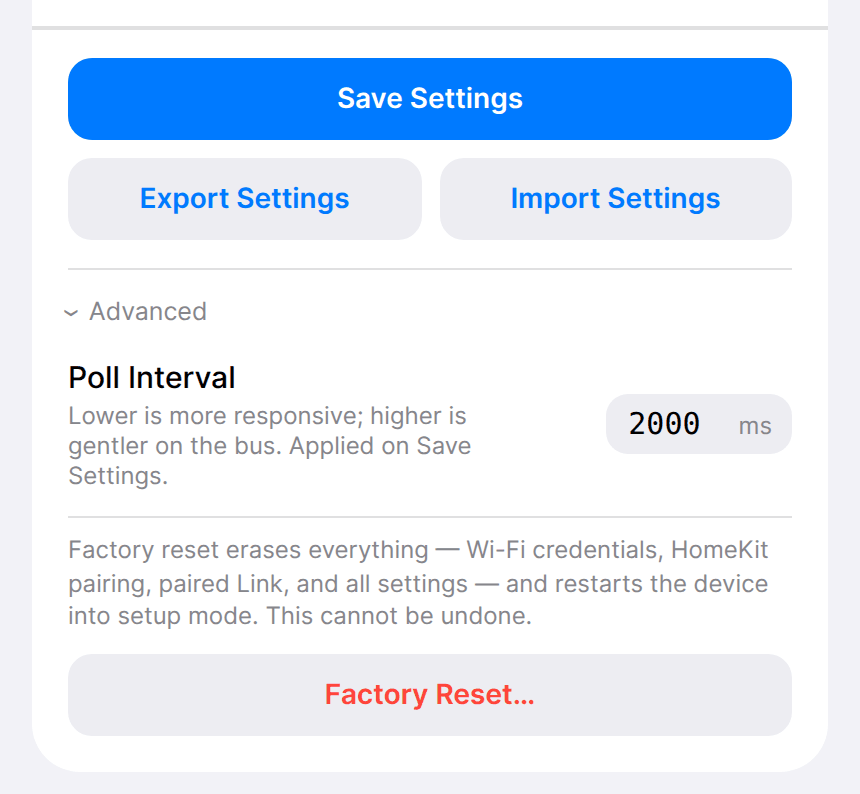
- Choose the desired firmware. For a full reset, select Erase everything first and review the erase warning. Reinstalling over USB without erase is not a factory reset; the flasher can preserve settings.
- Install and wait for completion. After an erased installation, configure Wi-Fi and pairing again using the appropriate setup guide.
- Disconnect USB before reconnecting CN105, with HVAC power still off. Follow physical installation, restore power, and verify control.
If changing firmware families, start with Choose your firmware and follow the flasher's erase guidance. If USB does not detect the controller, see USB troubleshooting.
Crash-loop safe mode
On HomeKit-compatible firmware, repeated crashes can start the controller in safe mode, with only Wi-Fi and the web interface available. A banner identifies safe mode; other controller functions are disabled. Open the interface and install a firmware update, or use USB recovery above.
If safe mode returns after a USB installation, investigate wiring and power and contact support. See status lights for the yellow pulse and firmware-specific meanings.