 serin labs
Mitsubishi to Apple HomeView: Mini-Splits & Air Handlers
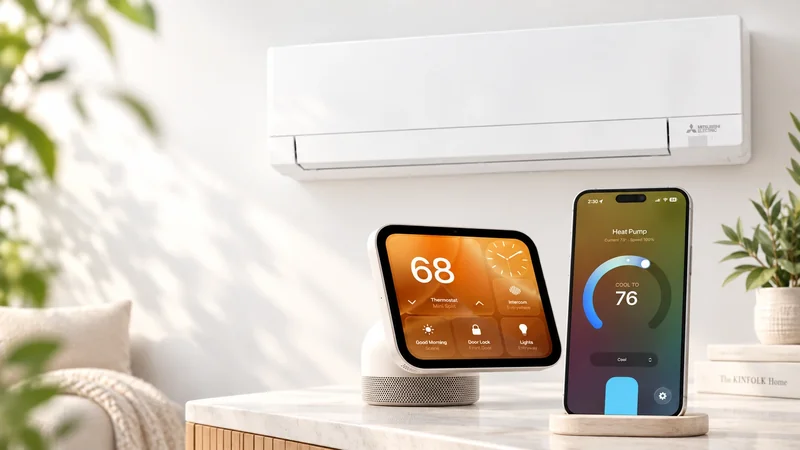
Apple's new HomeView puts a shared smart-home screen on a counter or wall. Your Mitsubishi heat pump can join that home, too: the connection starts with adding it to Apple Home.
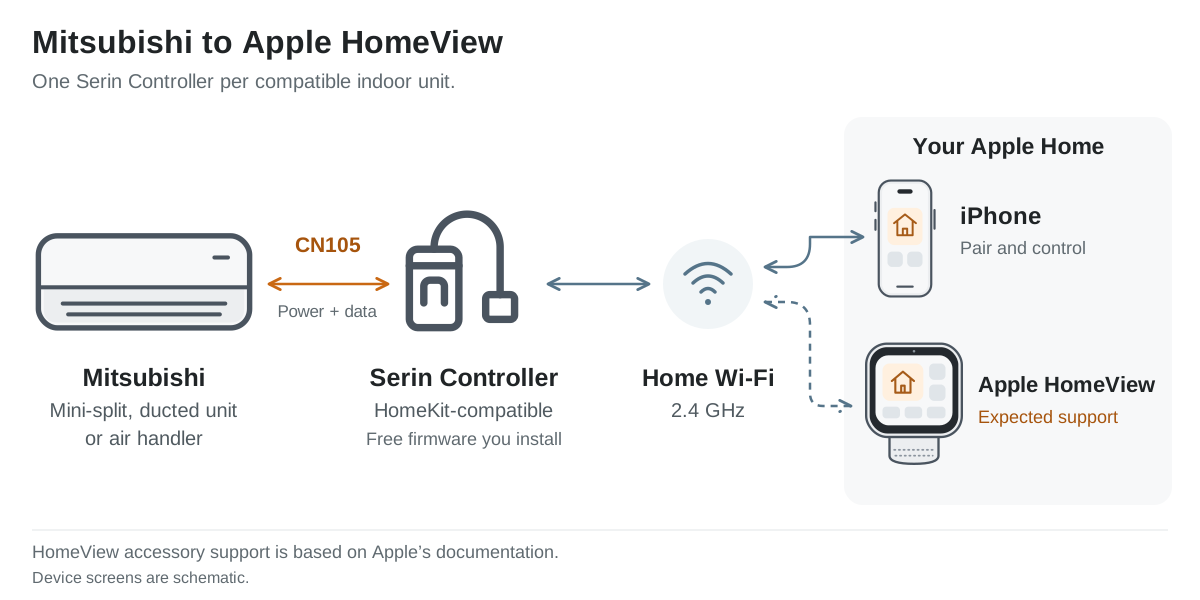
For a compatible Mitsubishi Electric mini-split, ducted unit, or air handler, the route is a Serin Controller connected to the indoor unit's CN105 port. You install the free, open-source HomeKit-compatible firmware, then pair it with the Home app on your iPhone or iPad. Apple says HomeView can manage the accessories already in that app. Apple's HomeView FAQ documents that relationship.
Status as of October 13, 2026: Apple lists HomeView availability beginning November 13. The Apple Home setup below is available now. See Apple's announcement page.
Quick Facts
- Fits: compatible Mitsubishi Electric indoor units, including wall units, cassettes, floor units, and ducted air handlers. Check the complete model number first.
- Hardware: one controller per indoor unit, from $35 with its cable. The board ships without firmware installed.
- Firmware: free, open-source HomeKit-compatible software that you install through the browser flasher.
- Network: the controller uses 2.4 GHz Wi-Fi; no Home Assistant server or separate bridge hardware is required.
- Pairing: add the controller to Apple Home, then use that existing home on HomeView.
- Certification: this is an independent project, not an Apple-certified accessory. Apple Home shows an uncertified-accessory notice during pairing.
How Apple HomeView Reaches Your Mitsubishi Heat Pump
HomeView brings the Home app to a dedicated display, with temperature controls, scenes, and automations. Apple's Home app page also lists HomeView as a home hub for away-from-home access and automations.
The missing connection is inside the Mitsubishi. The controller exchanges commands and status with the indoor unit through CN105. Its HomeKit-compatible firmware makes that unit available as a thermostat in Apple Home. HomeView then accesses the Apple Home setup.
The path is Mitsubishi indoor unit ↔ CN105 cable ↔ Serin Controller ↔ home Wi-Fi ↔ Apple Home. HomeView is another way to use that home.
CN105 carries information in both directions. The controller reads the unit's reported state, so a temperature change made with the original handheld remote can appear in Apple Home. You don't need Kumo Cloud or MELCloud for this connection. The HomeKit-compatible firmware overview explains the local connection and available features.
Which Mitsubishi Mini-Splits and Ducted Air Handlers Work?
Start with the model number on the indoor unit. An outdoor model such as an MXZ identifies the shared system, but doesn't establish compatibility for each indoor unit.
Supported examples include Mitsubishi MSZ-GL06NA and MSZ-FH09NA wall-mounted mini-splits, plus SVZ-KP18NA and MVZ-A30AA7 air handlers. Ducted models such as the SEZ-KD09NA4 and PEAD-A24AA7 are also compatible. Similar model names can have different results, so check your exact unit below.
Before you buy
Will it work with your unit?
Enter the complete indoor-unit model number, including its suffix, to check compatibility before choosing a controller.
An existing accessory may occupy the port. Check before ordering: the controller cannot share CN105 with another accessory, and splitters aren't supported. If you depend on an existing wall controller, review its connection with your installer first.
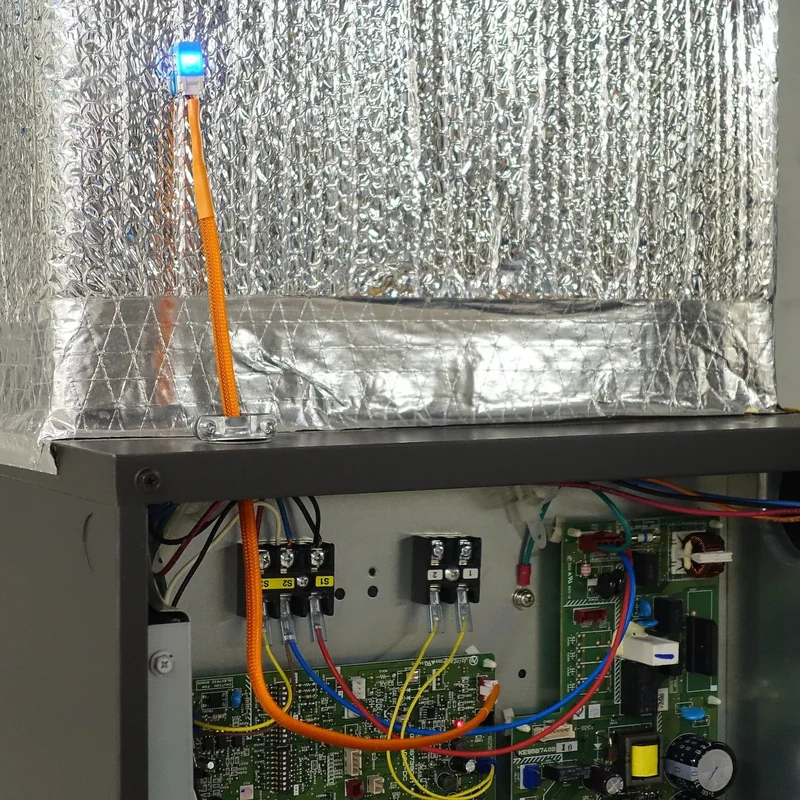
For metal-bodied air handlers, the 50 cm cable gives you room to position the Wi-Fi board outside the cabinet. The shorter 20 cm option suits many wall-unit installations. Cable reach and Wi-Fi reception matter just as much in a utility closet as they do in a bedroom.
What You Need Before Starting
The assembled Serin Controller includes the tested CN105 cable. You can also build your own using a supported board and the parts list. Both routes use the same free firmware.
Have these ready:
- A compatible indoor unit with an available CN105 connection.
- One controller and a suitable cable for that unit.
- A computer running Chrome, Edge, or Brave, plus a USB-C data cable for flashing.
- Your 2.4 GHz Wi-Fi name and password, with coverage at the indoor unit.
- An iPhone or iPad for Apple Home pairing.
For HomeView itself, Apple's technical specifications require an iPhone with iOS 27.2 or later, or an iPad with iPadOS 27.2 or later, plus Wi-Fi internet access. Those are HomeView requirements; check them before buying the display.
There is no Serin Labs account or subscription. Local controller communication stays on your network. Apple's remote access and online services have their own connectivity requirements.
Install the HomeKit-Compatible Firmware and CN105 Cable
Open the browser flasher with Apple Home selected. Connect the controller to your computer over USB and install the Apple Home build. That's the flasher's label for the HomeKit-compatible firmware; no compiling or development tools are needed.
The pre-assembled hardware still needs this step. It doesn't arrive with HomeKit-compatible firmware pre-installed. The firmware source is available separately, and the licenses page credits its upstream projects.
After flashing, disconnect USB. Turn off HVAC power at the breaker, leave it off while the unit is open, and follow the installation guide. Locate the five-pin connector labeled CN105, seat the cable, and secure the board clear of moving parts, condensate, and places the cover could pinch the cable.
Replace the cover before restoring power. CN105 supplies the controller's power, so you don't need a USB charger inside the unit. Have an HVAC technician make the connection if opening the cabinet is outside your comfort level.
Pair with Apple Home, Then Use the Same Home on HomeView
First get the thermostat working on your iPhone or iPad. The Apple Home setup guide includes screenshots and troubleshooting; the sequence is:
- Join Wi-Fi. If you didn't configure Wi-Fi in the flasher, join the controller's
Serin-XXXXsetup network using the passwordserinlabs. Openhttp://192.168.4.1if the setup page doesn't appear, and enter your home Wi-Fi credentials. - Return to your home network. Open
http://Serin-XXXX.local, using your controller's suffix. Its IP address from your router also works. - Open the HomeKit panel. Display its pairing QR code on another screen, then use your iPhone or iPad to scan it in Apple Home's Add Accessory flow. You can enter the panel's setup code manually instead.
- Complete pairing. Review the uncertified-accessory notice, assign the thermostat to a room, and give it a useful name such as Bedroom Heat Pump.
- Verify the connection. Check the reported room temperature, change the target or mode, and confirm the indoor unit responds. A tile alone doesn't prove the cable is carrying heat-pump data.
-
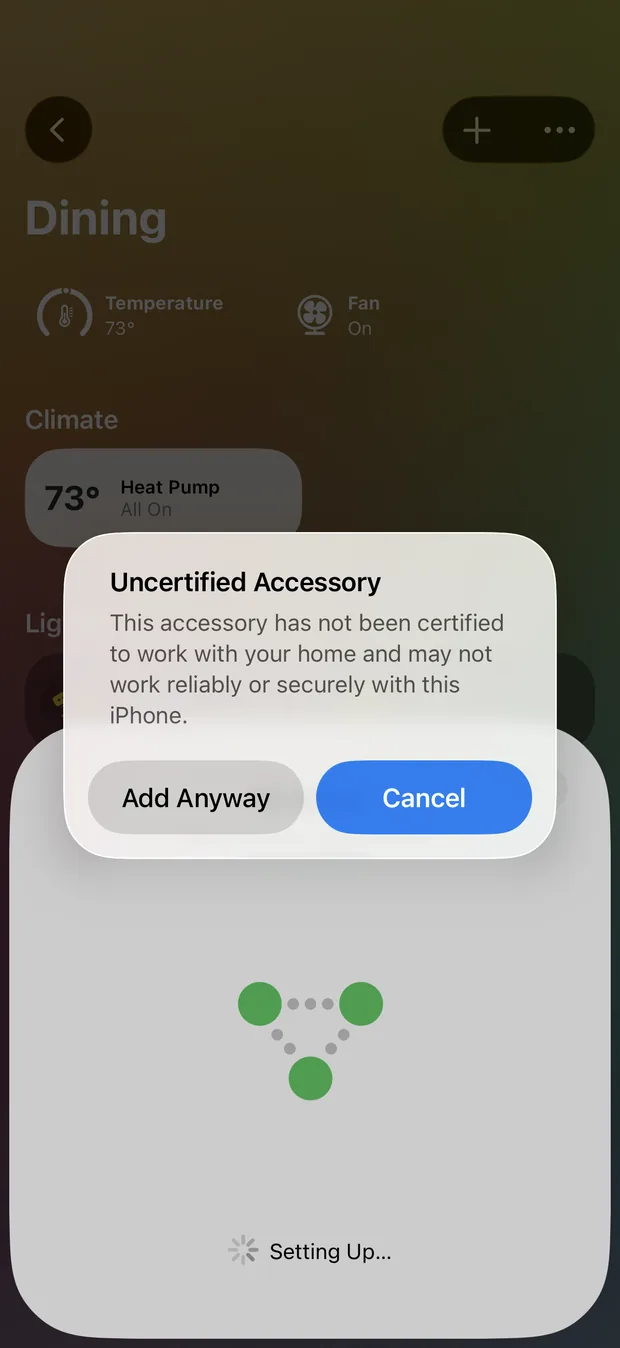
1Review the pairing notice and choose Add Anyway to continue. -
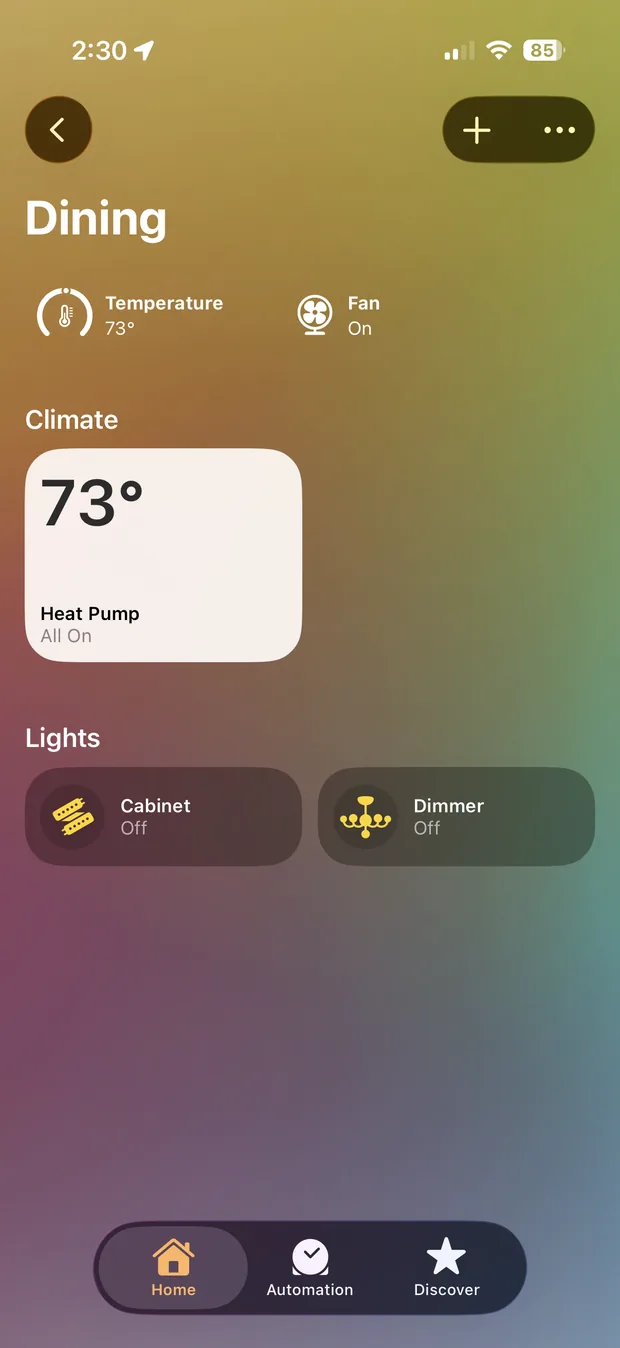
2Find the Heat Pump thermostat in its assigned room. -
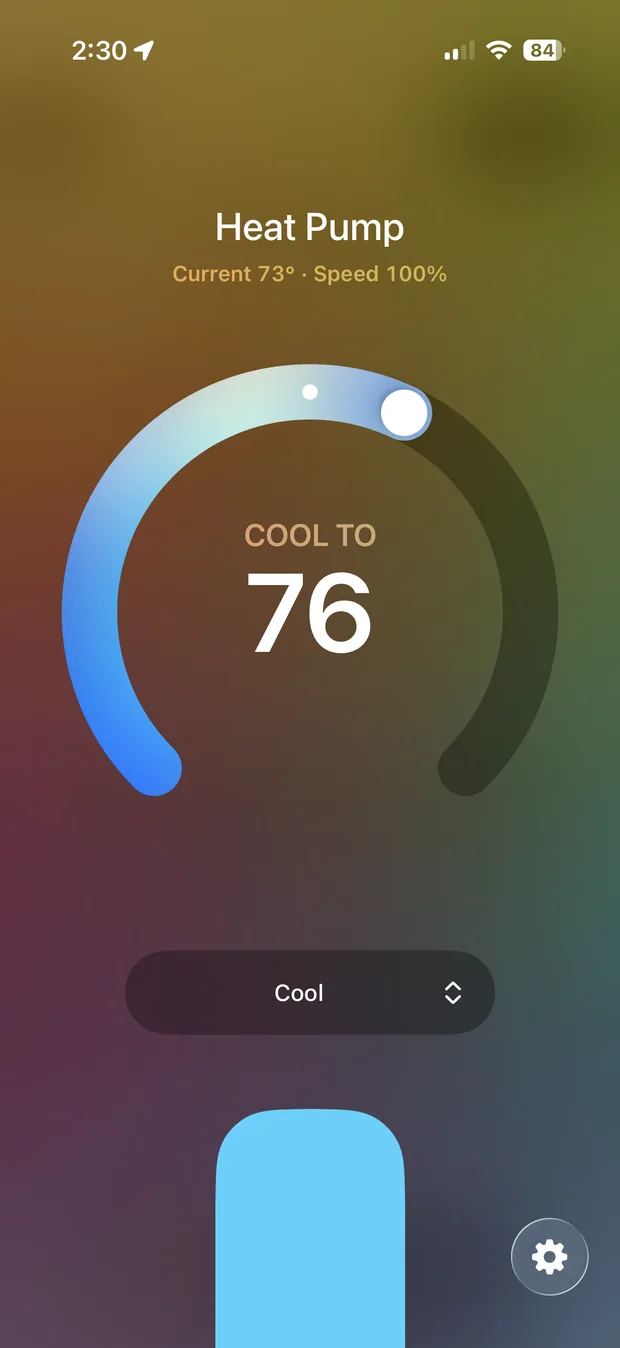
3Open it to change the target temperature and operating mode.
When HomeView is available, use it with your existing home in Apple Home. Based on Apple's documented shared accessory support, the thermostat should then be accessible there.
Already controlling this unit through Apple Home? Keep that working setup. There's no documented reason to reset or reflash it just to prepare for HomeView.
Which Controls Belong in Apple Home?
The firmware exposes more than a basic on/off switch. Its HomeKit control reference distinguishes the thermostat from extra services and the controller's web interface.
| Function | Existing HomeKit-compatible firmware behavior |
|---|---|
| Reported room temperature and target temperature | Available through the Apple Home thermostat |
| Off, Heat, Cool, and Auto | Thermostat modes, subject to the indoor unit's capabilities |
| Fan speed | A separate fan control; automatic fan speed has its own switch |
| Fan-only and Dry modes | Separate switches where supported, rather than extra thermostat modes |
| Vane direction and swing | Controller web interface |
| Compressor frequency, outdoor temperature, runtime, and error codes | Controller web interface, when the unit reports them |
HomeView's thermostat dashboard shouldn't be taken as a promise that every Mitsubishi function will fit on one tile. Use the controller's web interface for the complete control surface and diagnostics.
For temperature sensing away from the unit, the firmware supports selected Bluetooth thermometers and the optional Serin Link. Follow the room-sensor guide to configure a supported source. Adding a display to the room doesn't, by itself, change which temperature the heat pump uses.
Set Up Rooms and Routines for a Multi-Zone System
Count indoor units, not outdoor condensers or supply vents. Three indoor heads need three controllers. A single ducted air handler serving several rooms gets one controller and one thermostat; this doesn't create independent damper zones.
Assign each thermostat to its actual Apple Home room and use distinct names. That makes voice requests such as “Siri, set Bedroom Heat Pump to 70 degrees” easier to direct. Check each thermostat individually before putting several into a scene.
Useful starting points are a bedtime scene with bedroom settings and a scheduled change for a home office. Apple documents scenes and time- or presence-based automations; use settings you've already confirmed work manually.
A shared outdoor system still imposes its own operating limits. Separate Apple Home tiles don't guarantee simultaneous heating in one room and cooling in another. The multi-zone guide explains controller counts and shared-system constraints.
Common Questions About Mitsubishi and HomeView
Do I need a HomePod or Apple TV as well?
Apple lists HomeView itself as a home hub. A separate HomePod or Apple TV isn't a stated requirement for that role. Before HomeView arrives, basic local HomeKit control can work from your iPhone; remote access and automations need a suitable home hub. Apple describes the hub options here.
Do I need Matter or Thread for this setup?
This guide uses the HomeKit-compatible firmware over Wi-Fi. A Thread border router isn't part of the controller's connection. HomeView's Thread support doesn't make this controller a Thread accessory, and you don't need to switch a working HomeKit setup to Matter for the route described here.
Will Apple's Adaptive Temperature work?
Don't assume it will. Apple specifies a compatible Matter thermostat for Adaptive Temperature. That doesn't establish support for Serin's HomeKit-compatible firmware, or automatically validate the separate Serin Matter build.
What if Apple Home adds the thermostat but the unit doesn't respond?
Check the controller's Heat Pump · CN105 status and follow CN105 troubleshooting. Keep Wi-Fi pairing and heat-pump communication separate in your diagnosis. Some SEZ-KD regional models need a different serial speed; use the exact-model advice in the compatibility list.
Choose the Route That Fits Your Installation
Choose the Serin Controller if your Mitsubishi has a supported, available CN105 port and you want local control with feedback from the unit. Ducted equipment belongs in that decision just as much as a wall-mounted mini-split.
Choose an infrared option if your unit uses a compatible handheld remote and you want to avoid opening it. Sensibo Air is a HomeKit-certified alternative according to Sensibo's product documentation. Check its remote compatibility; it isn't a general solution for ducted equipment without an infrared receiver.
Keep an existing Apple Home integration if it already controls your Mitsubishi reliably. For HomeView, establishing the thermostat in the right home is the useful preparation.
To get started:
- Check your full indoor-unit model number.
- Choose the controller and cable length, or assemble the DIY parts.
- Install the Apple Home firmware and verify thermostat control.
- When you set up HomeView, use your existing home in Apple Home.
Give the heat pump a connection first. Then give the household a screen.
Related
- Check your exact Mitsubishi indoor-unit model
- Apple Home setup guide
- Serin Controller hardware and cable options
- Plan a controller for each indoor unit
Next step
Check your unit first
Type your indoor unit's model number for a verdict in under a minute. If it fits, the firmware flashes in the browser in about two minutes.