 serin labs
Control a Mitsubishi mini-split with Google Home
Connect a CN105 ESP32 controller to the service port inside the Mitsubishi indoor unit, flash the firmware, and add the heat pump from the Google Home app. It appears as a thermostat for temperature, mode, voice commands, and routines. No Mitsubishi Wi-Fi adapter, Kumo Cloud account, Home Assistant server, or Serin Labs subscription is required.
Already have a controller? Set it up with Google Home.
At a glance
- One CN105 ESP32 controller is required for each Mitsubishi indoor unit.
- Setup begins in the Google Home app and uses Bluetooth for pairing.
- Controls include temperature, Heat, Cool, Auto, power, voice commands, and routines.
- No Mitsubishi cloud account or vendor app is required.
Good to know
- A compatible Google or Nest hub and an IPv6-enabled network are required.
- The firmware is free to install and not open source.
- The firmware is not certified; Google Home displays a one-time warning during setup.
- The controller hardware arrives without firmware installed.
How the CN105 ESP32 controller adds Google Home support
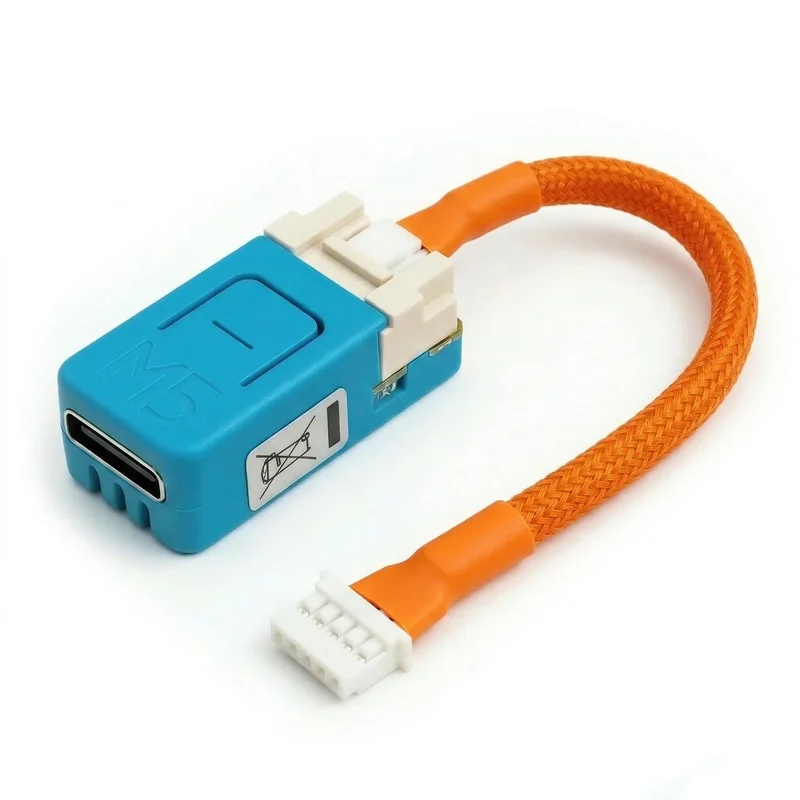
Most Mitsubishi Electric mini-splits have a five-pin service connector called CN105 on the indoor control board. The Serin Controller combines a supported M5Stack ESP32 board with a tested CN105 cable, giving the firmware a direct, two-way connection to the heat pump.
Install the firmware from a supported browser, turn off power to the indoor unit, and connect the cable to CN105. Then add the controller in the Google Home app. During pairing, the app sends your home Wi-Fi credentials to the ESP32 over Bluetooth.
What Google Home can control
Power and modes
Turn the unit on or off and select Heat, Cool, or Auto.
Target temperature
Set the thermostat target from the app or by voice.
Room temperature
See the current temperature reported by the controller.
Voice and routines
Use Google Home voice commands and place the thermostat in household routines.
Google Home displays a standard thermostat. Fan speed, vane position, diagnostics, and other controls that are not available in Google's thermostat card remain accessible through the controller's built-in web interface.
What you need
- A compatible Mitsubishi indoor unit: check the model number before ordering. One controller is needed for each indoor unit you want to control.
- A CN105 ESP32 controller: buy the pre-assembled controller, or use a supported board and cable from the DIY parts list.
- A USB-C data cable and supported browser: the initial flash runs in Chrome, Edge, or Brave on a computer.
- A compatible Google or Nest hub: Google Home needs a supported hub device to set up and control this Wi-Fi accessory. Check Google's current setup and compatibility guidance rather than relying on an old model table.
- IPv6 on the home network: the firmware depends on IPv6. Confirm it is enabled before troubleshooting the controller.
Set up your controller
Setup has three parts: install the Matter-compatible firmware, connect the controller to the indoor unit, and add the thermostat in Google Home. The app transfers your Wi-Fi credentials over Bluetooth; there is no separate setup-hotspot step for initial pairing.
Follow the Google Home setup guide for prerequisites, pairing, and a final check that the indoor unit responds.
Limits to understand before buying
- Not certified: Google Home displays a one-time uncertified-accessory warning. The product does not carry a Works with Google Home badge.
- Features not available in Google Home: dry mode, fan-only mode, fan speed, and vane direction are not reliably shown in the Google Home thermostat card.
- Diagnostics are available in the web interface: compressor frequency, outdoor temperature, runtime, and error codes do not appear in Google Home.
- One occupied CN105 port: the controller cannot share CN105 with a factory Wi-Fi adapter or wired wall controller.
Google Home firmware or ESPHome through Home Assistant?
Use the firmware when Google Home is the main interface and you do not already run Home Assistant. Use ESPHome when you want the full mini-split feature set in Home Assistant and want to connect Home Assistant to Google Home. Google Home shows similar thermostat controls with either option. With ESPHome, you can also use Home Assistant for fan speed, airflow direction, diagnostics, and automations.
For a comparison that also covers Mitsubishi’s Kumo Cloud adapter, read how to add a Mitsubishi mini-split to Google Home.
Get the CN105 controller
The ESP32 board and tested cable arrive assembled and ready for you to flash. Free US shipping.
Buy now from $35Already have a board?
Install the free firmware, then add it from the Google Home app. The firmware source is not published.