 serin labs
Kumo Cloud Not Working? Five-Minute Triage, Then a Decision
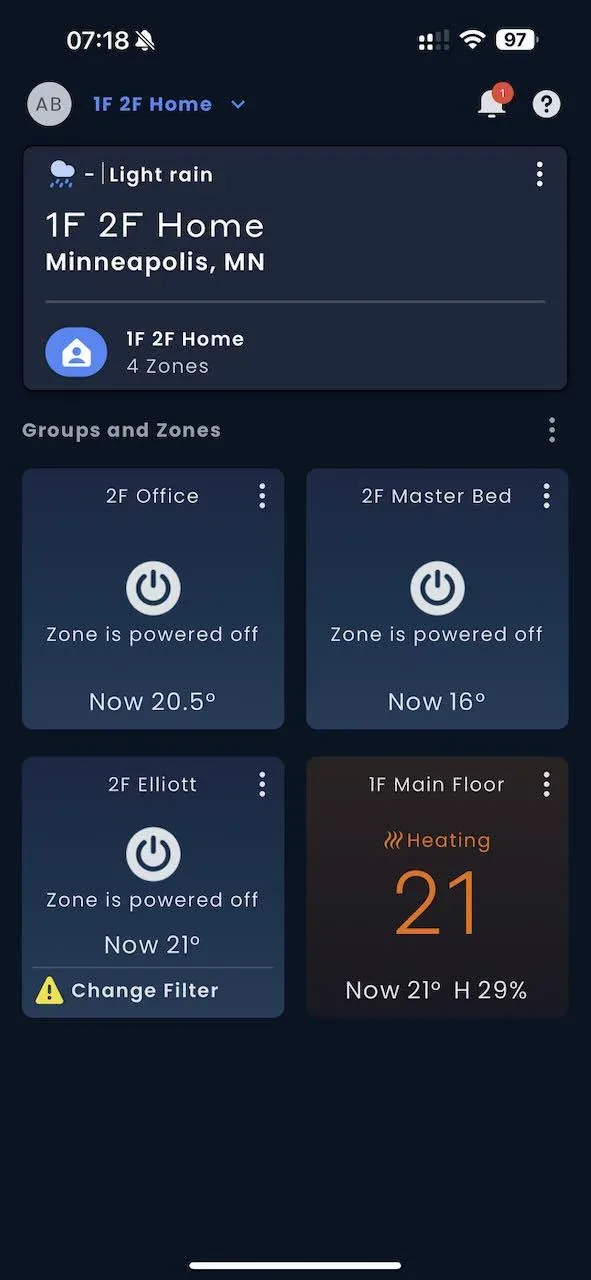
The house is cold, it's quarter past six, and the app that runs your heat pump is showing a grey tile and a spinner. You don't want an essay about cloud architecture right now. You want heat.
So here's the triage, in likelihood order. Step two gets your house warm again even when everything else is broken — if you read one section, read that one.
Three things sit between your thumb and your heat pump and fail independently: the app, the Wireless Interface (Mitsubishi's Wi-Fi adapter, on the CN105 port inside the indoor unit), and Mitsubishi's servers. A grey offline tile looks identical in all three cases.
The fastest split, before you touch anything: is it one zone or all of them? Each indoor unit has its own adapter, so one head down while the others are fine points at that adapter. Everything down at once points at your router, your internet, your account, or the far end.
Quick Facts
- The app changed. Mitsubishi Electric announced the Comfort app on 9 December 2025, describing it as "a replacement for kumo cloud®."
- Old adapters need the old app. The first-generation PAC-WHS01WF-E doesn't work with Comfort; Mitsubishi keeps a separate kumo cloud legacy app for it, and says kumo cloud "will be decommissioned soon."
- Current adapter: PAC-USWHS002-WF-2 (Wireless Interface 2), on the CN105 port — one per indoor unit.
- An internet outage doesn't stop local control. With your Wi-Fi up you can still change temperature from a phone inside the house; remote access and schedules are what break.
- Network requirements: 2.4 GHz only, channels 1–11, WPA2-PSK (AES). It will not join a 5 GHz network or an unsecured one.
- Mitsubishi Electric US support: 800-433-4822.
Unless another source is named, every technical claim below comes from the kumo cloud 2.22 Technician Manual for Installer (© 2023 Mitsubishi Electric US, Inc.), checked August 2026.
Step 1: Are You Still on the Right App?
On 9 December 2025 Mitsubishi Electric announced the Comfort app and called it, in their words, "a replacement for kumo cloud®." The App Store listing for Comfort by Mitsubishi Electric carries the old kumo cloud app's version history, including a release note stating "Comfort app is the new kumo cloud."
The catch is the hardware. Mitsubishi's kumo cloud® legacy listing spells it out:
"A new version of the kumo cloud app called Comfort app is available in the App store. This version of the kumo cloud app is available just to support the existing old PAC-WHS01WF-E adapters as they do not work with the new Comfort app. […] Please upgrade the adapters to the PAC-USWHS002-WF-2 as soon as possible as the kumo cloud app will be decommissioned soon."
So the question that resolves a surprising share of "Kumo Cloud stopped working" reports is: which adapter do you have, and which app are you holding? A PAC-WHS01WF-E needs the legacy app, because Comfort won't talk to it. A newer Wireless Interface belongs on Comfort — Mitsubishi names only the PAC-WHS01WF-E as the one Comfort leaves behind. The part number is on the adapter's label, with details you'll want in step six.
Mitsubishi has not published a date for that decommissioning. The listing says "soon," so treat the legacy app as borrowed time.
Step 2: Can You Still Control It from Inside the House?
Before diagnosing anything, get the heat back on. The manual's FAQ answers this directly:
"If service from the internet service provider (ISP) goes out will kumo cloud still work?
Yes! As long as the local wireless network is functioning, you can change the temperature using a smartphone/tablet from inside the house."
The qualifier: "Remote operations will not work," and programme or zone-name changes won't reach your other devices until the connection returns.
Practically, get your phone onto the same Wi-Fi as the adapter and try again. Not cellular, not the guest network — the manual says elsewhere that when zones don't appear you should "check that the Wireless Interface and the smartphone/tablet are connected to the same network."
After a power cut, the app works again "as soon as power returns to the equipment and the local network," though schedules stay interrupted until internet service returns.
And the fallback that never fails — the handheld remote still works. Per the manual, "Whichever control was adjusted last takes effect." Whatever the app or the servers are doing, that little white remote sets your temperature. Your house needn't be cold while you work through the rest.
Step 3: What the Signal Screen Actually Tells You
The app ships with a diagnostic that separates local problems from upstream ones, buried where nobody finds it. Open the unit's settings and tap Signal. It reports two readings, not one:
| Reading | What it measures | What "bad" looks like |
|---|---|---|
| Unit to Wi-Fi | Adapter to your router | "Weak signal to WiFi", "No signal to WiFi" |
| Router to kumo cloud | Your network to Mitsubishi | "No signal" instead of "Signal live" |
That second row tells you whether the problem is even yours. The manual's guidance for each:
- No signal or very weak from the unit to the network — "consider relocating the Wireless Interface, relocating the router or adding a repeater." Your problem; steps four to six. The manual also names Mitsubishi's PAC-WHS01IE-E IT Extender here.
- No signal from the Router to kumo cloud — "check the local wireless network for problems including connection with the internet."
Read it plainly: if the adapter reaches your router but the router-to-cloud row is dead, what's broken is past your front door. No amount of resetting will change that.
Step 4: Reading the Adapter's Lights
Worth a look, with a caveat: Mitsubishi documents a small vocabulary here, not a fault-code table. Three readings, each with the manual's wording and what it means for you:
- No green. "The green light glows when power is connected." No green means no power — a seating or supply problem at the indoor unit, not a cloud problem.
- Four quick blue flashes you didn't ask for. "Four quick, blue flashes indicate Bluetooth LE configuration mode." It's waiting to be provisioned, which is the signature of lost Wi-Fi credentials — exactly what a new router or a changed password produces.
- Three slow blue flashes. "Three slow, blue flashes repeat after connection is complete." It believes it's connected; pair that with step three.
There's no documented pattern for "the cloud is down," and amber appears only during a factory reset, step six.
Seeing any of this means opening the front panel. Kill power at the breaker first, and if that makes you uneasy, call your installer — the manual is clear this is professional work.
Step 5: The Router Settings That Actually Break It
This is where "it worked for two years and then stopped" almost always lands. You didn't change anything — your router did. The manual repeats one ATTENTION block on nearly every setup page:
- "The Wireless Interface 1 and 2 must connect to a 2.4 GHz Wi-Fi® network… will not work on a 5 GHz Wi-Fi network… can only connect to Wi-Fi channels 1-11."
- "For the best performance connect the Wireless Interface 1 and 2 to a 2.4 GHz only SSID, but there are some multi-band Wi-Fi networks that can correctly manage a 2.4 GHz only device."
- "kumo cloud® assumes the local network is using common WPA2-PSK (AES) security. It will not connect to unsecured networks."
As a checklist:
- New router, or a changed Wi-Fi password? That's your answer. It needs re-provisioning, not repair.
- One combined 2.4/5 GHz SSID. Mitsubishi's wording — some multi-band networks can manage a 2.4 GHz-only device — does quiet work. If your router can split the bands, split them.
- Channel above 11. Some routers reach 12 or 13 by region. Pin the 2.4 GHz band to 1, 6, or 11.
- Security mode. The manual commits only to WPA2-PSK (AES) and says nothing about WPA3, now a router default. If yours is WPA3-only, try dropping the 2.4 GHz band to WPA2 (AES) — an inference from what the manual does say, not a documented Mitsubishi position. An open guest network it won't join at all.
Step 6: Resets, in the Right Order
Last, deliberately. This is where you can turn a bad morning into a worse one.
Before you reset anything, read the adapter's label and write down the Adapter ID, MAC address, and WPA key. The first two drive the manual-setup path ("Enter the Adapter ID and MAC Address found on the back of the Wireless Interface"), and the manual warns that a unit removed and later "re-added to a different account" will need "the WPA key from the back of the Wireless Interface." Learning that after you've buttoned the panel back up is a bad afternoon.
Then, gentlest first:
- Restart the app, then sign out and back in. Separates an expired session from an offline adapter.
- Restart the router, then power-cycle the indoor unit at the breaker.
- Back to configuration mode — non-destructive. "Use the configuration button to switch from the wireless network mode back to the Bluetooth LE configuration mode. Push, hold 5 seconds and release." This hands it new Wi-Fi credentials without erasing anything — the fix for the four-quick-flashes state above.
- Factory reset — two procedures, and they are not the same thing. The manual frames both as something "technical support may suggest," a fair signal about where they belong:
- Revert to factory firmware: "Push and hold the factory reset button until the amber LED turns on (about 5 seconds), then release."
- Revert to factory firmware and erase all user settings: "push and hold the factory reset button. Wait until the amber LED turns on and then begins to blink (about 8 seconds), then release the button."
Five seconds and eight seconds are three seconds and a whole afternoon apart. Watch the amber LED, not the clock.
When It Isn't Yours to Fix
Some of these failures are Mitsubishi-side, and nothing you do at home will fix them. That isn't a dig — it's the arrangement of any cloud service: an account system, an API, and servers in someone else's building, outside your reach by design. The tell is the combination from step three — local control works, unit-to-Wi-Fi reads Strong, router-to-cloud dead. Or a login that fails with credentials you know are right. Your options then: wait, use local control from step two, or pick up the remote.
I won't pad this with a list of past outages. I have no dated primary record of specific Kumo Cloud incidents, so anything I wrote would be hearsay you couldn't check. What I can report is what I could and couldn't verify:
- I found no public Mitsubishi service-status page for either app — no dashboard, no incident feed.
- The homeowner help centre at
help.mitsubishicomfort.comrequires a login, so you can't consult it while you're locked out. - The support line in the technician manual is 800-433-4822.
Which leaves the phone, and a phone queue at 6 a.m. is not a fix.
The Fork: Fix It Again, or Stop Depending on It
If step one sorted it — wrong app, right adapter — you're done. Go and enjoy the heat.
But if this is the second or third time you've worked a list like this, the question stops being "how do I fix it" and becomes "how many of these failure modes do I want to keep owning?" Of the six steps above, two are about the heat pump. The rest are about an app version, an account, and a server you'll never see.
The alternative is to put the control loop inside your house — the same CN105 port takes a small ESP32 board running open-source firmware instead, argued in full in the Kumo Cloud alternative post.
Three things it costs you:
- It's one port, so it's a swap. Most units have exactly one CN105 and the adapter is in it, so you'd give up the Comfort app rather than run both — the full comparison covers that trade.
- You give up the support line. The firmware is community open source, not Serin Labs' own work; the licences page records who wrote what.
- Multi-zone multiplies. One board per head at $35 pre-assembled, each needing a browser flash — the multi-zone post does the arithmetic.
Where to Go From Here
- Your zones came back at step one or two. Nothing more to do. Note your adapter's part number while it's on your mind.
- You're on a PAC-WHS01WF-E. Move to the legacy app today, and treat the hardware upgrade as a when, not an if.
- Router-to-cloud is dead but local control works. It isn't your network. Use the local path or the remote.
- You've reset this adapter more than once. That pattern is worth acting on. Any single outage isn't.
The short version, in order:
- Confirm which adapter you have and which app it needs.
- Get on your home Wi-Fi and try again — local control survives an internet outage.
- Read the Signal screen. It tells you whether the problem is even yours.
- Then work outward: LEDs, router settings, resets — gentlest first.
- If you land here often, check your unit for CN105.
A thermostat that needs an account, an app migration, and someone else's servers to change the temperature in your own house is a lot of moving parts for one job. Today, get it working. Then decide how many of those parts you want to keep owning.
Related
- The best Kumo Cloud alternative
- Check your unit for a CN105 port
- The Serin controller
- Every way to make a Mitsubishi mini-split smart
Next step
Check your unit first
Type your indoor unit's model number for a verdict in under a minute. If it fits, the firmware flashes in the browser in about two minutes.