 serin labs
When It Won't Boot: Recovery Wi-Fi, Safe Mode, and Wireless Updates
The tile in the Home app has gone grey, and the board is behind the cover of an indoor unit up on the wall. That's the moment this post exists for. Before the screwdriver comes out, it's worth knowing that most of what gets called a bricked board isn't one.
The HomeKit-compatible firmware stacks three recovery layers underneath itself, plus a fourth that doesn't need the firmware working at all. A backup setup network for lost Wi-Fi. A safe mode for a crash loop. Automatic rollback for a bad update. Then USB, which always works. Working out which layer you're in takes a minute, and it decides whether this is a five-minute job or a cover-off job.
Quick Facts
- Backup setup network: the HomeKit firmware starts one after 5 minutes without Wi-Fi, and turns it off once Wi-Fi reconnects
- Hotspot name:
Serin-XXXX, passwordserinlabs; the recovery page is athttp://192.168.4.1 - Safe mode: 5 consecutive crashes drop the firmware to Wi-Fi and the web interface only, so an update can still get in
- Bad update: the image is SHA-256-verified before it's applied, and rolls back automatically if validation fails afterwards
- Wi-Fi reset: a 10-second hold on the board button erases stored Wi-Fi credentials
- Last resort: USB flashing always works, from the flash page in desktop Chrome, Edge, or Brave
- Cost of all of it: nothing. Updates are free and open source, with no subscription
Everything below is the HomeKit firmware unless it says otherwise. The ESPHome build differs, and it gets its own section.
Start With the Symptom, Not the Screwdriver
Four failure modes account for nearly all of this, and they're distinguishable from your phone before you touch the unit. Find your row first.
| What you're seeing | What it usually is | Where to go |
|---|---|---|
Tile unavailable, and a Serin-XXXX network has appeared in your Wi-Fi list |
It lost your network and started its backup setup network | Path 1, below |
| Web interface loads, but no heat-pump data and nothing in Apple Home | Crash-loop safe mode | Path 2 |
| You tapped Install, and it came back running the old version | Wireless update validation failed and it rolled itself back | Path 3 |
| Nothing on Wi-Fi, no setup network, nothing on USB | Power or cable, then USB flashing | Path 4 |
| Wi-Fi and web interface are fine, but the unit ignores commands | Not a boot problem — it's the CN105 link | Troubleshooting |
That last row is the one people misdiagnose most. A controller that answers on its own address is booting fine; the problem is downstream, at the cable or the port.
Path 1: The Backup Setup Network
This is the common one, and it isn't a fault. Change your Wi-Fi password, swap a router, move the board into a metal air handler that blocks the signal, and the controller can't get back on the network.
After 5 minutes without Wi-Fi, the firmware starts its own setup network. It's named Serin-XXXX, where XXXX is the last four characters of the controller's Wi-Fi address, and the password is serinlabs. Join it from your phone and a setup page opens. If it doesn't open by itself, go to http://192.168.4.1 and enter your network name and password there. The controller saves them, reboots, and turns off the setup network once Wi-Fi reconnects.
A few things stop this working, all of them fixable. Give it at least 60 seconds after power-on — the setup network can take a moment to start. Make sure the board has a stable 5 V supply of at least 1 A. Turn mobile data off on your phone, or it may route your browser away from the setup network before the page loads.
If the setup network never appears at all, the controller may already be on Wi-Fi and simply unreachable by name. Check your router's DHCP client list for it before assuming the worst. To force the controller back into setup mode, hold the board button for 10 seconds. That erases the stored Wi-Fi credentials but does not reinstall the firmware. A full reset is a USB reflash.
Worth fixing the underlying cause too, not just the symptom. Boards that keep dropping off are usually fighting signal, 5 GHz-only networks, or DFS channels, and the Wi-Fi section of the troubleshooting guide covers each one.
Path 2: Crash-Loop Safe Mode
Here's the layer that turns a scary failure into a boring one. The firmware counts consecutive crashes, and at five it stops trying to be a thermostat.
Safe mode brings up Wi-Fi and the web interface, and skips everything else — CN105, HomeKit, and Bluetooth Low Energy (BLE) all stay down. That's deliberate. The subsystems most likely to be crashing are the ones talking to hardware, so leaving them out gives you a stable controller that can still accept an over-the-air (OTA) update. Which means the fix for a crash loop is the same as the fix for anything else: push a new firmware image from the web interface.
From the outside it reads as a controller that's half there. The web page loads, the heat pump isn't in it, and Apple Home shows nothing.
The counter resets after a successful boot, so one bad restart doesn't strand the controller in safe mode. It takes five in a row.
Path 3: Rollback, Then USB
Updates are the failure people fear most, and they're the best-protected step in the whole system. The firmware verifies the image's SHA-256 checksum before applying it. After the update, the controller validates Wi-Fi and serial communication with the heat pump before confirming the new firmware. If validation fails, it rolls back to the previous firmware on its own.
So the realistic bad outcome from a failed update isn't a dead board. It's a board sitting on the version it had this morning.
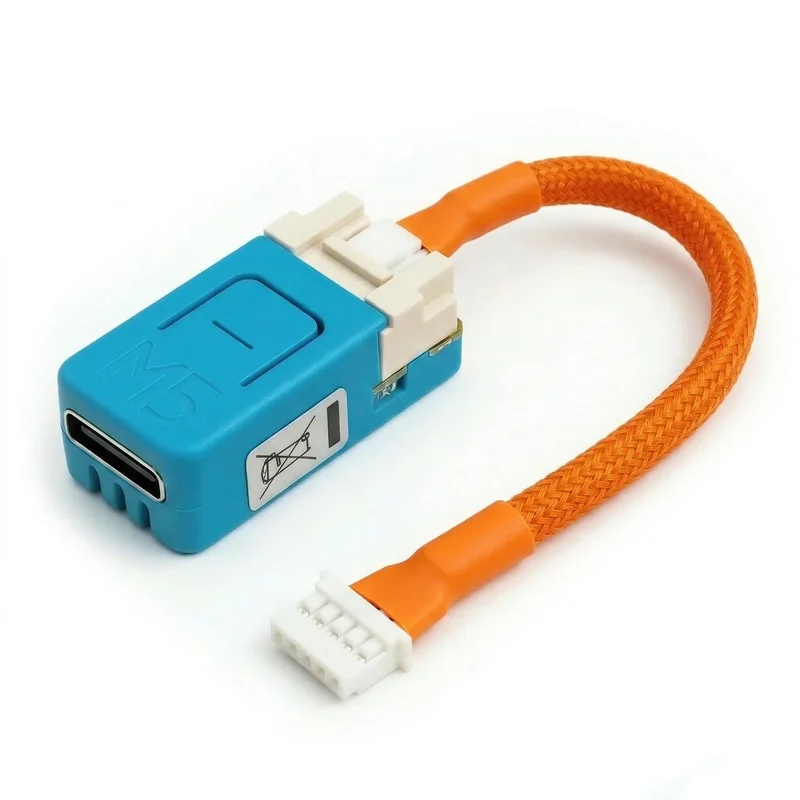
When rollback isn't enough, USB is the floor under everything. Connect the board over USB-C, open the flash page in desktop Chrome, Edge, or Brave, and write the firmware again. If the board is unresponsive, hold the BOOT button while plugging in USB, then flash. The page reads what's on the chip and tells you before it does anything — nothing is written until you press install. Writing the bootloader, partitions and app takes about 100 seconds, then roughly another 10 to verify the hash and reboot.
Before you conclude the hardware has failed, check the cable. A charge-only USB cable is the most common reason a controller does not respond. After that it's drivers (CP210x, CH340, or the SiLabs USB-to-UART bridge), a USB hub instead of a port on the machine itself, or a browser without Web Serial — Safari and Firefox don't have it, and neither do phone browsers. The flashing section of the troubleshooting guide works through them in order.
Reflashing is safe to re-run any time, and it doesn't cost you your setup unless you ask it to:
| Route | What it touches |
|---|---|
Backup setup network → 192.168.4.1 |
Enters new Wi-Fi credentials |
| 10-second board button hold | Erases stored Wi-Fi credentials |
| Wireless update from the web interface | Replaces the firmware image; rolls back if validation fails |
| USB reflash, erase box unticked | Wi-Fi credentials and Apple Home pairing survive the update |
| USB reflash, erase box ticked | Erases everything first — it's off by default |
| Apple Home → ESPHome | Wipes the HomeKit pairing; remove the accessory in the Home app first |
Why the Flash Page Doesn't Ask the Board Who It Is
This one surprises people who've used other browser flashers, and it changes how you read the page.
The HomeKit-compatible firmware only starts its USB-based network setup service while the backup setup network is active, and stops it again the moment Wi-Fi joins. A board that's working normally has no setup listener running at all. So if the flash page identified firmware by asking that service, it would call every healthy controller unrecognised.
It reads the app descriptor instead. Every ESP-IDF image — ESPHome's included — carries an esp_app_desc_t structure 0x20 bytes into its app partition, holding the project name and version it was built with. That needs no cooperation from the running app, and by the time the page wants it, it's already in the bootloader with flash reads available. It also checks otadata to see which slot actually boots, so a board caught mid-update gets reported honestly rather than by whichever image happens to sit lower in flash.
Improv still gets asked first, for about a second and a half, and it wins only when the flash has nothing to say. A board answering Improv is by definition running something.
The practical upshot: silence from Improv is not a diagnosis. It's the normal state of a healthy, connected controller. Improv's real job here is the other one — handing the board your Wi-Fi credentials over USB, which is exactly what a board with no working network needs.
How Updates Actually Work
Open the web interface at http://Serin-XXXX.local, or http://<controller-ip> if .local doesn't resolve on your network. Expand Firmware and open Versions. The menu lists every published release for your board. Select one and confirm, and the browser downloads it, the controller verifies the SHA-256 checksum, and restarts. No manual download, no cable.
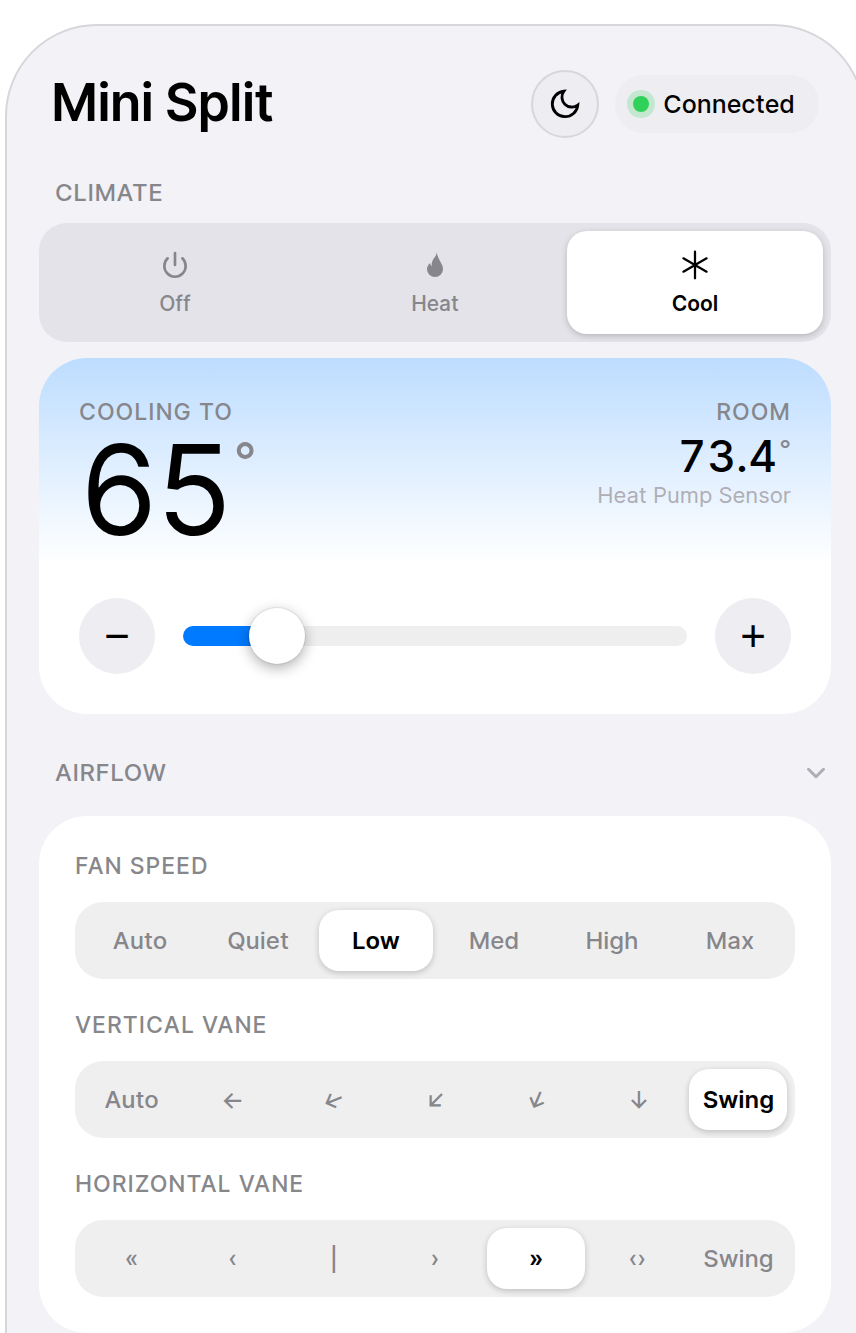
Two other routes exist in the same panel. You can upload a firmware .bin by hand, and the browser verifies its integrity before the upload starts. Or, if you build your own images, POST the binary to http://<controller-ip>/upload with curl. Same validation, same rollback.
The USB flash is a one-time step. Everything after it goes over Wi-Fi.
No Subscription, and What That Doesn't Buy
The site's wording is worth repeating exactly, because it's the honest version: the firmware is open source and free, and so are updates — there's no subscription attached to the hardware. Nothing lapses. There's no account that stops working, and no tier that unlocks the recovery features described above.
What it doesn't buy is a support contract, and I'd rather be blunt about that than let it read as implied. Serin Labs didn't write either firmware. The HomeKit-compatible build is an independent open-source project built on Espressif's esp-homekit-sdk and ESP-IDF; the ESPHome build comes from echavet's MitsubishiCN105ESPHome on top of ESPHome and SwiCago's HeatPump library. All of it is provided as-is, and the licenses page lists every component and its terms. Firmware bugs go to those projects' own issue trackers, which is where the troubleshooting page points you.
On the hardware side: returns and exchanges run 30 days from delivery, and anything defective or incorrect on arrival gets replaced or refunded with shipping covered both ways. Beyond that window the hardware is sold as-is, without an extended warranty — the trade-off behind a controller that starts at $35, stated plainly on the policies page.
What's Different on the ESPHome Side
Same board, same USB floor, different firmware — and I'm not going to describe one build's behaviour as if it were the other's.
The site documents this much for ESPHome: on first boot the controller creates a temporary setup network named serin-XXXXXX with the password serinlabs, and you provide credentials at 192.168.4.1. For a board that's already flashed but needs new credentials, use USB network setup from the ESPHome setup guide. A factory reset is a USB reflash, which resets all settings. If an over-the-air update fails, check that the controller is reachable and that a large configuration hasn't used all available flash space, then fall back to USB and re-adopt.
What the site does not document for ESPHome is a crash-loop safe mode or a timed backup setup network after losing Wi-Fi. Those are HomeKit-firmware behaviours, and I'd rather tell you that than let you assume the ESPHome build has them. If you're on ESPHome, the setup guide and troubleshooting are your references.
The Honest Limits
- Safe mode is a recovery platform, not a working thermostat. CN105, HomeKit, and BLE are all off while it's in there. The heat pump answers its handheld remote the whole time, but nothing else.
- Rollback protects against a bad image, not a bad network. It reverts firmware that fails validation. It can't fix wrong Wi-Fi credentials or an access point that keeps dropping the board.
- The version menu needs internet access to list the published releases. Manual
.binupload and USB flashing don't. - USB recovery needs physical access. If the board is buried behind a cover you'd rather not open, that's an argument for mounting it somewhere reachable — a longer CN105-to-Grove cable is the usual answer, and it's the same fix for metal air handlers that block Wi-Fi.
- It's a convenience accessory. The controller isn't a safety, protection, or life-support device. Your unit's own controls don't go away.
Who Should Do What
- There's a
Serin-XXXXnetwork in your Wi-Fi list. It fell off your network and did exactly what it's supposed to. Join the setup network, re-enter your credentials at192.168.4.1, done. No cover comes off. - The web interface loads but the heat pump isn't in it. That's safe mode. Push a firmware update from the web interface and let it boot normally.
- You ran an update and it's on the old version. Rollback did its job — you weren't bricked, you were protected. Grab the logs and file it upstream.
- Nothing answers anywhere. Go to USB. Try a different cable first, because that's usually the whole story.
- You're on ESPHome. Different playbook, above. Start at the setup guide.
The order I'd work through it:
- Check your phone's Wi-Fi list for
Serin-XXXXbefore touching a screwdriver. - If it's there, join it with
serinlabsand openhttp://192.168.4.1. - If it isn't, get the board on a USB data cable and open the flash page in Chrome, Edge, or Brave.
- Still stuck? Work through the troubleshooting guide, then open an issue on the firmware project with your logs, board type, and firmware version.
Bricked is a hardware word. Nearly everything that gets called bricked is a board waiting for a cable.
Related
Next step
Check your unit first
Type your indoor unit's model number for a verdict in under a minute. If it fits, the firmware flashes in the browser in about two minutes.